Getting StartedGetting Started

A simple step-by-step guide to help practices set up and begin using the Signposting Toolkit safely and confidently.

This onboarding process usually takes 30–60 minutes for an admin lead + a clinical lead.

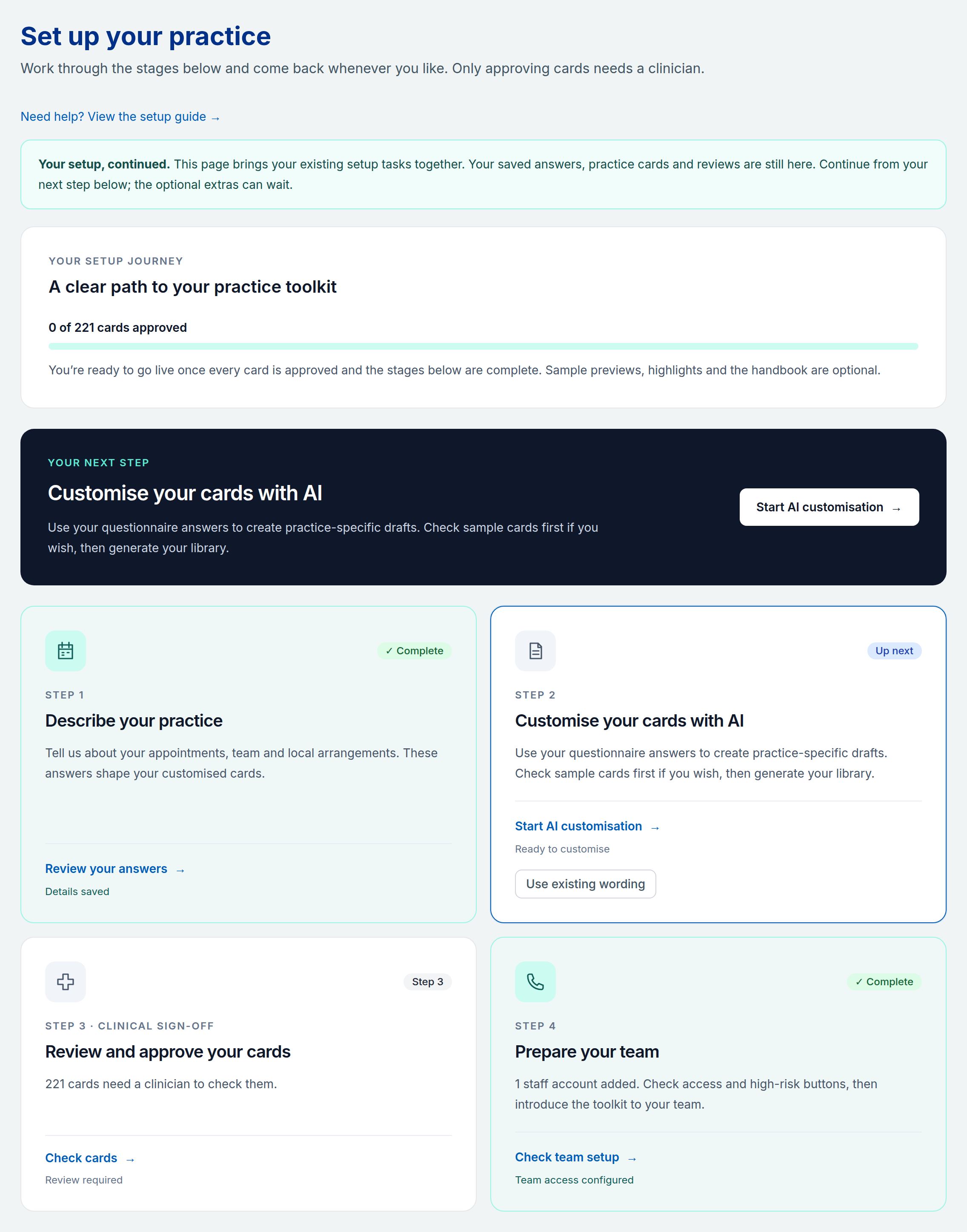
Tip: If your surgery has the onboarding features enabled, you can track your progress using the Setup & onboarding section in Practice settings. This shows which steps are complete and what remains to be done.


Onboarding Wizard

The Onboarding Wizard is a guided questionnaire that collects information about how your surgery operates. This profile is used to tailor the toolkit — particularly when using AI Surgery Customisation to rewrite symptom instructions for your local context.

The wizard is available at Admin → Onboarding and has eight steps:

Step 1 — Practice Overview

  • Surgery name
  • Whether you have a Duty Doctor model for urgent same-day issues
  • If yes, what terminology you use (e.g. “Duty Doctor”, “On-Call GP”)

Step 2 — Appointment Types & Booking Rules

  • Which appointments reception can book directly (e.g. Routine GP, Nurse Practitioner, Practice Nurse, HCA, Dressings, Blood Tests, ECGs, Smears, Immunisations)
  • Appointment types reception must NOT book directly
  • Whether you have named urgent/same-day appointment slots (e.g. “red slots”, “orange slots”)
  • If yes, how your appointment workflow operates (which roles book urgent slots, sequencing rules, exceptions)

Step 2.5 — Appointment Types & Naming

This extended step maps your local appointment names to standard archetypes so the AI can use the correct terminology:

  • Routine continuity GP — For non-urgent problems where the patient should see their usual GP
  • Routine GP telephone — For non-urgent problems manageable over the phone
  • GP triage within 48 hours — For problems needing GP input within 1–2 days
  • Urgent same-day telephone (Duty GP) — For urgent or safety-critical same-day problems
  • Urgent same-day face-to-face — For patients who clearly need examination today
  • Direct booking with another clinician — For problems that go straight to another clinician

For each enabled type, you provide:

  • The local name your reception team sees in the appointment book
  • Who usually sees the patient (GP, Duty GP, ANP, Pharmacist, etc.)
  • A one-sentence description explaining when this type is used

You can also configure non-GP clinician appointments (Minor Illness Clinician, Clinical Pharmacist, First Contact Physiotherapist, or other).

Important: The quality of AI-customised instructions depends directly on what you enter here. Vague or incomplete descriptions produce generic output that won’t match your surgery’s real workflow. Take the time to fill in local names, clinician roles, and descriptions accurately — the AI can only work with the information you provide.

Good example vs poor example

Below is the same Minor Illness Clinician (ANP) archetype filled in two different ways:

Well-filled entry:

FieldValue
Local nameANP Clinic (Minor Illness)
RoleANP
Conditions checklistEarache, sore throat, sinusitis, cough (acute), UTI (non-pregnant adults), simple skin infections, conjunctivitis, insect bites
RestrictionsDoes not manage chronic disease reviews, mental health, or children under 2
Under-5sAccepts children aged 2–5 for the conditions listed above

Poorly-filled entry:

FieldValue
Local nameANP
RoleANP
Conditions checklist(empty)
Restrictions(empty)
Under-5s(left as default — No)

The well-filled entry gives the AI enough detail to route “sore throat in a 4-year-old” to the ANP Clinic. The poorly-filled entry gives the AI almost nothing to work with, so it defaults to routing everything through a GP.

Note: If two appointment types have very similar local names (e.g. “GP Telephone” and “GP Phone Triage”), the AI may confuse them when writing instructions. Use distinct, unambiguous names that match exactly what your reception team sees in the appointment book.

Minor Illness Clinician — getting the best results

If your surgery has an ANP, Nurse Practitioner, or other minor illness clinician, this section is especially important.

Conditions checklist — Tick the conditions your minor illness clinician routinely handles. The AI uses this list to decide which symptoms can be routed away from a GP. If the list is empty, the AI has no basis for routing anything to this clinician.

Under-5s setting — Some minor illness clinicians see young children; others do not. If your clinician accepts under-5s (or a subset, e.g. ages 2–5), enable this setting. The AI uses it to decide whether a “child with earache” should go to the ANP or remain with a GP. Leaving it off when your clinician does see young children means those patients will always be routed to a GP unnecessarily.

Restrictions — Use this to tell the AI what your clinician does not handle. For example: “Does not manage chronic disease reviews, mental health, or complex multi-system problems.” This prevents the AI from routing inappropriate conditions to the wrong clinician.

Example of a complete, well-configured entry:

  • Local name: ANP Clinic (Minor Illness)
  • Role: ANP
  • Conditions: Earache / ear infection, Sore throat / tonsillitis, Sinusitis, Cough (acute, uncomplicated), Cold / flu symptoms, Uncomplicated UTI (non-pregnant adults), Simple skin infections, Conjunctivitis, Insect bites / minor wounds
  • Under-5s: Yes — accepts children aged 2 and over
  • Restrictions: Does not manage chronic disease reviews, mental health assessments, children under 2, or complex multi-system presentations

What to expect from AI customisation

After completing the onboarding wizard and running AI customisation, here is what to expect:

  • Conservative routing — The AI defaults to preserving GP pathways when it is uncertain. If your profile doesn’t clearly indicate that another clinician handles a condition, the AI will leave the GP routing in place. This is by design — it is safer to under-route than to send patients to the wrong clinician.
  • Clinical review is mandatory — Every AI-customised instruction is set to Pending review. A clinician must approve each one before it goes live. This is not a rubber-stamp step — reviewers should check that routing makes sense for your surgery.
  • You can re-run customisation — If you improve your onboarding profile (e.g. add missing conditions to your ANP, fix a local name), you can re-run AI customisation. The new run will use your updated profile and overwrite previous drafts.
  • Skipped symptoms are normal — Some symptoms will be skipped during customisation. The results page shows these with a reason (e.g. “No instructions to customise” or “Base symptom has no HTML content”). This is expected — not every symptom needs customisation.

Step 3 — Team Structure

  • Which clinicians you have on site (GP partners, Salaried GPs, ANPs, Practice Nurses, HCAs, FCP, Pharmacist, Mental Health Practitioner, Social Prescriber, Frailty Team, and others)
  • Whether certain symptoms or tasks are usually handled by specific roles (e.g. “Back pain → FCP”)

Step 4 — Safety & Escalation

  • Who reception should escalate to first when worried about a patient (Duty Doctor, Shift GP, Nurse Practitioner, or other)
  • Any specific internal wording for urgent symptoms

Step 5 — Local Services

For each local service, describe the main service you use and how staff should signpost patients:

  • MSK / physiotherapy
  • Mental health
  • Social prescribing
  • Community nursing / wound care
  • Audiology
  • Frailty / falls
  • Sexual health
  • Out-of-hours service

You can choose whether to include local pathway details directly in symptom instructions (yes, brief, or no).

Step 6 — Communication Preferences

  • Whether instructions should be brief, moderate, or detailed
  • Whether to use your surgery’s terminology, generic NHS wording, or a mix

Step 7 — Final Settings

  • Whether AI-generated instructions should automatically require clinical review (recommended: yes)

Completing the Wizard

Click Finish & Save on the final step. The onboarding profile is saved and the Setup Checklist updates to show completion. You can return to any step at any time to update your answers.

After completing onboarding, the wizard offers a direct link to the AI Setup page to begin customising instructions.

Setup Checklist

The Setup Checklist (available from the Admin Dashboard) tracks your progress across essential and recommended steps.

Essential steps:

  • Practice questionnaire completed
  • Appointment model configured
  • Team members added
  • High-risk buttons configured
  • AI customisation run (if enabled)
  • Clinical review progress (fewer than 10 pending)

Recommended steps:

  • Appointment directory set up
  • Highlight rules enabled
  • Practice Handbook items added (if enabled)

Once all essential steps are complete, the page transitions into a Surgery Health dashboard showing governance, usage, and content metrics.


1. Create Surgery Admin Users

Each surgery needs at least one admin user to configure settings and approve changes.

  1. Go to the Admin area.
  2. Create one or more users and assign the Surgery Admin role.
  3. (Optional) Add a Superuser if this surgery will serve as a central management site.

Tip: Surgery Admin users cannot alter base symptoms, but they can override them locally.


2. Configure Surgery Details

Before adding symptoms or instructions:

  • Check your surgery name
  • Check your site configuration
  • Ensure appointment types and team members match your current setup

This ensures that downstream signposting rules point to the correct services.


3. Review the Symptom Library

Every practice starts with:

  • A shared base library of symptoms
  • The ability to create local overrides
  • The ability to add completely custom symptoms

Recommended setup for new surgeries:

  1. Browse the symptom list.
  2. Flag symptoms that need local adaptation (e.g., different referral pathways).
  3. Add local override text where appropriate.
  4. Add highlight rules for important phrases specific to your team.

4. Complete the Clinical Review Workflow

Before any symptom goes live, it must be reviewed.

For each symptom:

  • Check the instruction clarity
  • Check the safety guidance
  • Ensure the advice matches your local workflow
  • Mark as Approved once satisfied

Tip: The Clinical Review tab lets you see:

  • Symptoms awaiting review
  • Approved symptoms
  • Symptoms needing updates

This creates a simple governance loop and a clear audit trail.


5. Configure the Appointment Directory

Reception teams rely heavily on the appointment directory.

You should:

  1. Import or manually add appointment types (e.g., GP Same Day, Nurse Dressing, Podiatry).
  2. Add team members and roles.
  3. Specify age restrictions or conditions where relevant.
  4. Reorganise categories so they match what your reception team is used to seeing.

Outcome:
Your signposting rules will now direct staff to your actual appointment types, not generic ones.


6. Test the Toolkit with Your Reception Team

Before going live:

  • Pick 5–10 common symptoms (e.g., sore throat, UTI, rash).
  • Ask reception admin staff to run them through the tool.
  • Confirm:
    • Highlighted text makes sense
    • Instructions are clear
    • Appointment options look correct
    • High-risk flags behave as expected

Fix issues now while testing is quick.


7. Update Training Notes (Optional)

Use the built-in AI Suggested Questions panel to help staff gather consistent information.

Examples:

  • “When did symptoms start?”
  • “Any red-flag features?”
  • “Is this for a child or adult?”

This acts as a mini-training module inside the workflow.


8. Go Live

Once the clinical lead is satisfied:

  • Inform reception/admin staff
  • Hold a 10-minute intro session (optional)
  • Begin using the toolkit for all incoming calls, walkins and eConsults

Most practices adopt it fully within 24 hours.


9. Monitor Usage (Optional)

If enabled, the admin dashboard can show:

  • Most-used symptoms
  • Most active users
  • Areas where staff struggle

This helps identify where further training or refinement is needed.


10. Maintain Governance

Simply repeat the clinical review cycle whenever:

  • New symptoms are added
  • Local instructions change
  • Pathways change
  • Highlight rules need adjustment

Your documentation updates will reflect changes automatically.


Need help?

For onboarding, support, or demos:

contact@signpostingtool.co.uk


Last updated: February 2026