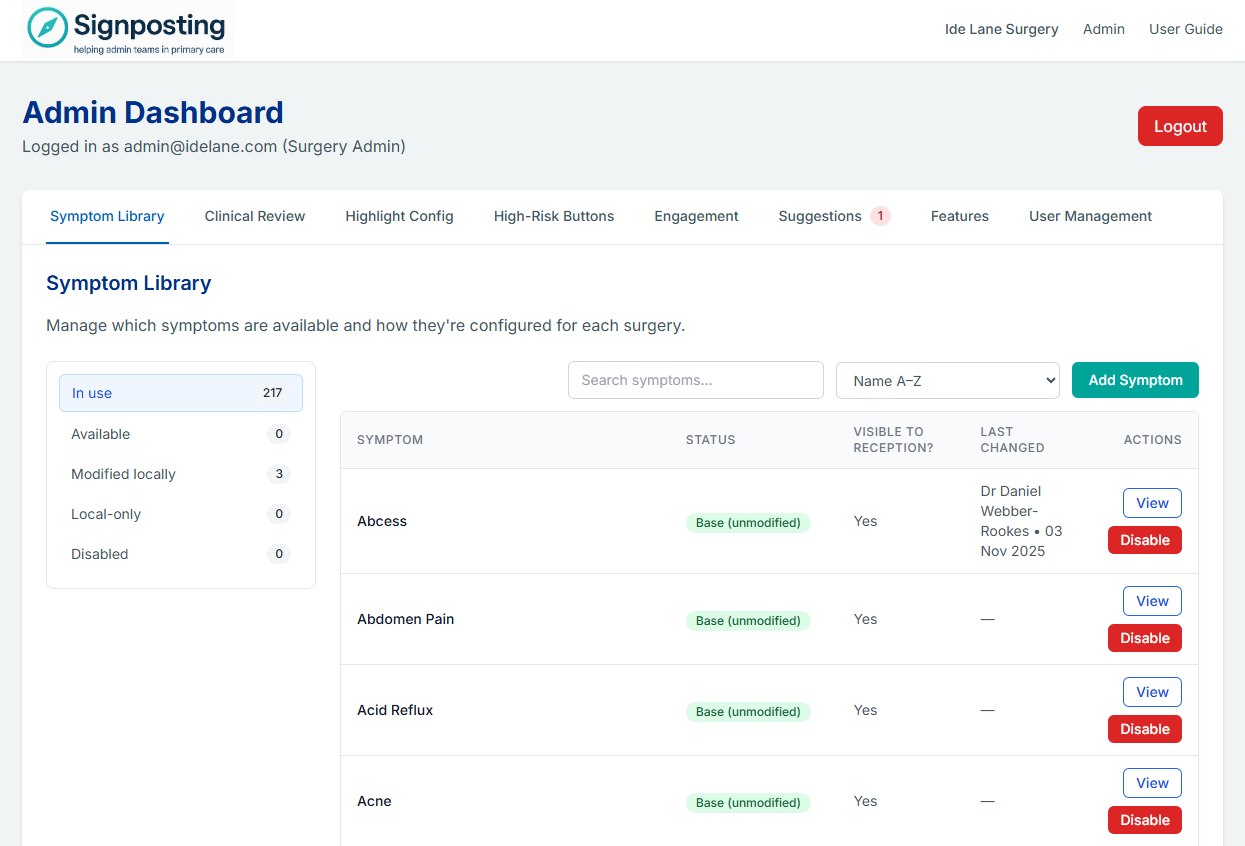
The Symptom Library is the core of the Signposting Toolkit. It provides a structured, searchable collection of symptoms with clinically-approved instructions for care navigation.
Overview
The library includes over 200 pre-loaded symptoms covering common primary care presentations. Each surgery can use these as-is, modify them to suit local practice, or create entirely new symptoms.
Base Symptoms
Base symptoms are the standardised, centrally-maintained symptoms included with the toolkit. They provide a consistent starting point for all practices.
Characteristics
- Pre-loaded and ready to use
- Clinically structured with clear instructions
- Cover common presentations across primary care
- Organised by age groups: Under 5, 5-17, and Adult
Using Base Symptoms
Base symptoms work immediately without configuration. Staff can search, filter, and view them straight away.
Local Overrides
Surgery-specific customisation allows practices to modify any aspect of a base symptom without affecting the central library.
What Can Be Overridden
- Display name — Rename the symptom for your practice (for example, “Cough” → “Dry cough”). Set this in the Customise All Fields dialog using the optional Display name input — leave blank to inherit the standard name. The renamed symptom only changes for your surgery; other practices and the base library are unaffected.
- Wording — Modify instructions to match local pathways
- Age Groups — Adjust which age ranges apply
- Icons — Customise visual indicators
- Highlight Rules — Add or modify colour coding
- Instructions — Full control over care navigation guidance
Override Badge
When a symptom has been locally modified, a “Practice Customised” badge appears, making it clear the content differs from the base version.
Benefits
- Maintain local clinical standards
- Reflect surgery-specific pathways
- Adapt to regional services
- Keep base updates available for future adoption
Custom Symptoms
Surgeries can create entirely new symptoms that exist only in their library. These are marked as “Practice Created” and are completely independent of the base library.
Use Cases
- Local referral pathways not covered by base library
- Surgery-specific protocols
- Community-specific presentations
- Temporary or trial symptoms
Management
Custom symptoms are managed entirely by the surgery and will not be affected by central base library updates.
Highlight Rules
The highlight engine automatically colours key phrases in symptom instructions to draw attention to important information.
Built-in Colours
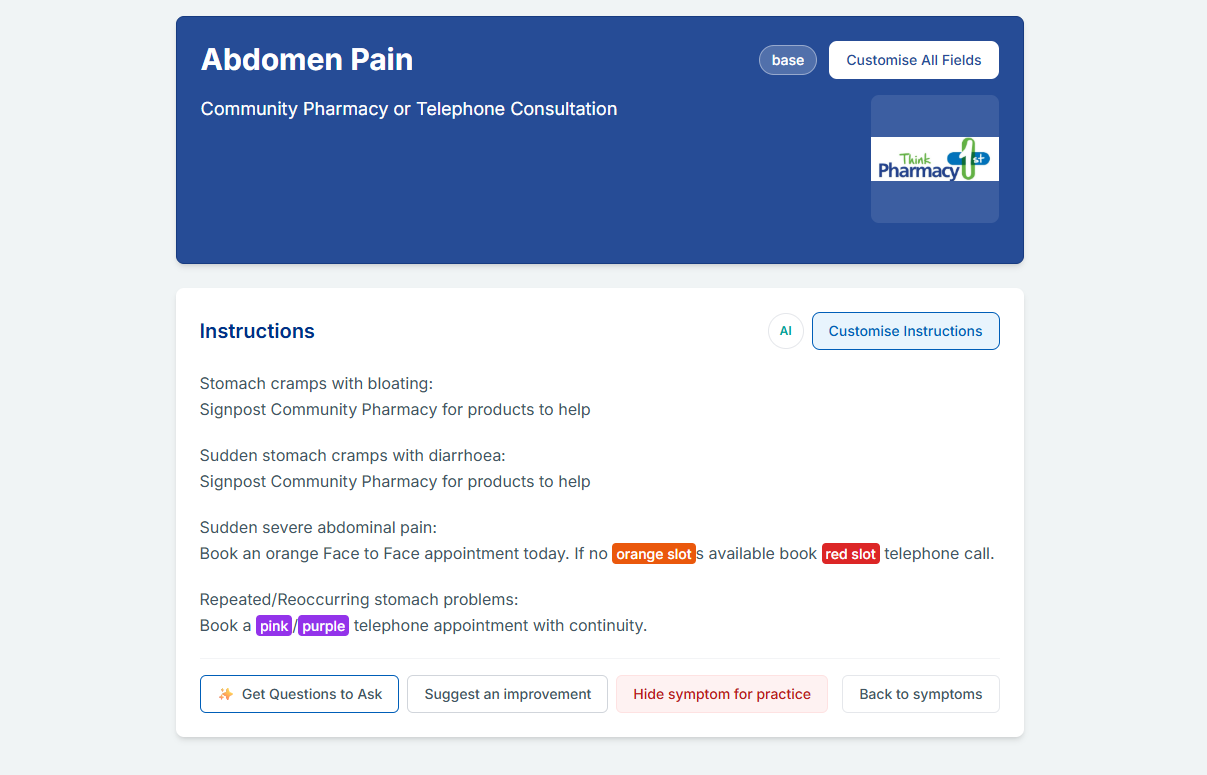
- Orange slot — Standard appointments requiring booking
- Red slot — Urgent appointments
- Pink/Purple — Specific service types
- Green — Community or pharmacy pathways
Custom Highlight Rules
Surgeries can create custom highlight rules to colour-code any phrase they choose. This helps emphasise local preferences, services, or critical information.
See the High-Risk & Highlighting page for more details.
Icons
Icons can be displayed on symptom cards and instruction pages to provide visual context.
Icon Features
- Per-symptom configuration
- Customisable sizes (small, medium, large)
- Surgery-specific or global icons
- Accessibility-friendly with alt text support
Age Filters
Symptom library supports three age groups:
- Under 5 (U5) — Paediatric presentations
- 5-17 (O5) — School-age children and adolescents
- Adult — Adult presentations
Age Group Filters
Staff can filter the symptom library by age group to quickly find relevant guidance. Each symptom displays its applicable age groups as coloured badges.
Age-group variants
Some symptoms carry age-group variants — alternative instruction text per age band shown as clickable chips on the symptom page (before or after the main instructions). The shared variants live on the base symptom, apply to every practice by default, and are managed by the Signposting Toolkit team (superusers) — including when viewing a practice’s customised version of the symptom, or when creating a new shared-library symptom from the Add Symptom dialog.
Each practice can also decide how variants appear locally. When editing a symptom, practice admins choose between three options under Variants at this practice:
- Use shared variants (default) — show the variants from the shared symptom library
- Customise for this practice — replace the shared variants with practice-specific wording
- Hide variants at this practice — show no age-group variants on this symptom
These choices are stored with the practice’s customisation and never change what other practices see. Practice-created (custom) symptoms can carry their own variants too — added when creating the symptom or edited later from the symptom page, and visible only to that practice. Variant content also appears in the symptom preview drawer and Clinical Review so reviewers see everything staff will see.
Single all-ages mode (per surgery)
Some surgeries prefer to work without age bands: one entry per symptom, with any age-specific advice (under 5, 5–17, adult) written inside the instructions.
This is a per-surgery option controlled by the Signposting Toolkit team (superusers) from the Feature rollouts page. When it is enabled for a surgery:
- The age filter and coloured age badges are hidden across the front page, symptom pages, and clinical review
- Duplicate age versions of the same symptom are disabled so one card shows per symptom — the locally-edited version is kept where one exists, otherwise the Adult version (disabled versions can be re-enabled individually from the Symptom Library at any time)
- The editor reminds staff to include age-specific advice within the single entry
- AI question prompts generate all-ages questions, starting with an age-establishing question such as “How old is the patient?”
If your surgery would like to switch to this mode, contact the Signposting Toolkit team.
Related Symptom Links
A symptom can link to other symptoms that are often relevant at the same time — for example, Chest pain might link to both Breathing problems and Palpitations.
- Links appear in a Related Information panel on the symptom page; clicking one opens that symptom’s instructions
- The symptom card shows the first link, with a +N more hint when there are several
- Editors manage links in the Customise All Fields dialog: search for a symptom by name (or type a name) and add up to 10 links
- Links point at a symptom’s name — if a linked symptom is renamed, update the link to match
Practices customising a base symptom can keep the standard links, replace them with their own, or remove them entirely for their surgery.
Images in Instructions
Symptom instructions can include inline images — for example a triage flowchart, a rash reference photo, or a numbered pictorial guide.
- Insert images from the image button in the instruction editor toolbar (JPG or PNG, up to 2MB), with optional alt text for screen readers
- Resize an image by selecting it and using the image size control next to the image button — Small, Medium, Large, or Original size
- Images work in the main instructions and in age-group variant instructions
- Staff reading a symptom can click an image to view it full-screen, then zoom in and drag to move around — handy for flowcharts and reference photos that are hard to read at page size. Press
Esc, click the background, or use the close button to go back. The same viewer is used in the Symptom Library and Clinical Review preview drawers - Images added to a base symptom (by the Signposting team) are visible to every practice; images added to a practice’s own customisation or practice-created symptom are private to that practice and served only to its signed-in members
- Like all instruction edits, adding or changing images sends the symptom back through clinical review
Sharing Practice Content with the Library
When one practice has refined a symptom particularly well, the Signposting team (system administrators) can share that work with everyone:
- Update base to match — on a practice-customised symptom, replaces the shared base content with that practice’s version for every practice that uses it. The originating practice’s “Practice Customised” marker is removed, since its version and the base version now match.
- Promote to shared library — turns a practice-created symptom into a shared base symptom. The originating practice keeps it enabled; for every other practice it starts disabled and appears in their Symptom Library’s Available folder with a green New badge, ready to adopt with one click (“Enable at this surgery”).
Adopting a new symptom
When you enable a newly promoted symptom, and your practice has AI customisation enabled, you’ll be offered the option to have AI adapt the instructions to your practice straight away — using the answers from your onboarding questionnaire (appointment types, team roles, escalation routes). The AI result goes to Clinical Review for approval before staff see any wording changes.
Search
The symptom library includes powerful search functionality:
- Text search — Search by symptom name or keywords, with a clear (×) button to reset the search in one click
- Alphabet filter — Quick navigation by first letter; letters with no symptoms are greyed out so staff don’t click into empty results
- Age group filter — Show only relevant age groups
- High-risk quick buttons — Instant access to urgent symptoms
Search Features
- Instant results as you type
- Highlights matching terms
- Searches across all visible symptoms
- Respects clinical review status
- A slim bar with the search box and A–Z letters stays pinned to the top of the screen once you scroll past the main filters, so you can refine your search from anywhere in the list
- A Back to top button appears when you scroll down a long list, returning you to the search box in one click
Card Layouts
Symptoms are displayed as cards in a clean, NHS-styled grid layout.
Card Information
- Symptom name
- Age group badges
- Source indicator (Base/Customised/Custom)
- Brief instruction preview
- Icon (if configured)
- High-risk indicator (if applicable)
Preferences
Users can customise card appearance:
- Modern white cards or Classic blue cards
- Quick-scan mode for minimal display
- Compact or detailed views
Clinical Review Status
All symptoms must pass clinical review before being fully available. See the Clinical Governance page for details on the approval workflow.
Symptoms awaiting review appear in the library but show a pending status indicator.
What’s Changed
The What’s Changed page shows recently modified symptoms so that staff and admins can stay aware of updates to the symptom library.
Access it from the symptom library via the What’s changed link.
What It Shows
- Recently approved changes — Symptoms that have been newly added or updated within a configurable time window (default: 30 days), or since a baseline date if one has been set.
- Change type badges — Each symptom is tagged as either New (green) or Updated (amber).
- Age group badges — Shows the age group (Under 5, 5–17, or Adult) for each changed symptom.
- Brief instruction preview — A one-line summary of the symptom’s current brief instruction.
- Approval date — When the change was clinically approved.
Filters
You can filter the list by:
- All — Show all recent changes
- New — Show only newly added symptoms
- Updated — Show only updated symptoms
Each filter chip shows a count so you can see at a glance how many changes fall into each category.
A summary footer shows the total number of new symptoms and updates in the time window.
Practice Handbook Changes
The Practice Handbook has its own What’s Changed view at the Handbook level, following the same pattern — showing recently modified handbook items with change type badges and date information.
Engagement Tracking
The system tracks which symptoms are viewed, helping practices understand usage patterns and identify training needs.
- View counts per symptom
- High-risk vs low-risk usage
- User activity patterns
See the Analytics page for the surgery-wide analytics dashboard.
Related Pages
- Clinical Governance — How symptoms are reviewed and approved
- High-Risk & Highlighting — Highlight rules and visual indicators
- AI Features — AI tools for improving symptom instructions
- Analytics — Usage analytics
- Admin Guide — Admin features including suggestions and image icons
Screenshots
Symptom Library – admin view
Symptom detail – instructions and AI Suggested Questions