Symptom Library
Navigation
The Symptom Library is the core of the Signposting Toolkit. It provides a structured, searchable collection of symptoms with clinically-approved instructions for care navigation.
Overview
The library includes over 200 pre-loaded symptoms covering common primary care presentations. Each surgery can use these as-is, modify them to suit local practice, or create entirely new symptoms.
Base Symptoms
Base symptoms are the standardised, centrally-maintained symptoms included with the toolkit. They provide a consistent starting point for all practices.
Characteristics
- Pre-loaded and ready to use
- Clinically structured with clear instructions
- Cover common presentations across primary care
- Organised by age groups: Under 5, 5-17, and Adult
Using Base Symptoms
Base symptoms work immediately without configuration. Staff can search, filter, and view them straight away.
Local Overrides
Surgery-specific customisation allows practices to modify any aspect of a base symptom without affecting the central library.
What Can Be Overridden
- Title/Name — Change how the symptom appears
- Wording — Modify instructions to match local pathways
- Age Groups — Adjust which age ranges apply
- Icons — Customise visual indicators
- Highlight Rules — Add or modify colour coding
- Instructions — Full control over care navigation guidance
Override Badge
When a symptom has been locally modified, a “Practice Customised” badge appears, making it clear the content differs from the base version.
Benefits
- Maintain local clinical standards
- Reflect surgery-specific pathways
- Adapt to regional services
- Keep base updates available for future adoption
Custom Symptoms
Surgeries can create entirely new symptoms that exist only in their library. These are marked as “Practice Created” and are completely independent of the base library.
Use Cases
- Local referral pathways not covered by base library
- Surgery-specific protocols
- Community-specific presentations
- Temporary or trial symptoms
Management
Custom symptoms are managed entirely by the surgery and will not be affected by central base library updates.
Highlight Rules
The highlight engine automatically colours key phrases in symptom instructions to draw attention to important information.
Built-in Colours
- Orange slot — Standard appointments requiring booking
- Red slot — Urgent appointments
- Pink/Purple — Specific service types
- Green — Community or pharmacy pathways
Custom Highlight Rules
Surgeries can create custom highlight rules to colour-code any phrase they choose. This helps emphasise local preferences, services, or critical information.
See the High-Risk & Highlighting page for more details.
Icons
Icons can be displayed on symptom cards and instruction pages to provide visual context.
Icon Features
- Per-symptom configuration
- Customisable sizes (small, medium, large)
- Surgery-specific or global icons
- Accessibility-friendly with alt text support
Age Filters
Symptom library supports three age groups:
- Under 5 (U5) — Paediatric presentations
- 5-17 (O5) — School-age children and adolescents
- Adult — Adult presentations
Age Group Filters
Staff can filter the symptom library by age group to quickly find relevant guidance. Each symptom displays its applicable age groups as coloured badges.
Search
The symptom library includes powerful search functionality:
- Text search — Search by symptom name or keywords
- Alphabet filter — Quick navigation by first letter
- Age group filter — Show only relevant age groups
- High-risk quick buttons — Instant access to urgent symptoms
Search Features
- Instant results as you type
- Highlights matching terms
- Searches across all visible symptoms
- Respects clinical review status
Card Layouts
Symptoms are displayed as cards in a clean, NHS-styled grid layout.
Card Information
- Symptom name
- Age group badges
- Source indicator (Base/Customised/Custom)
- Brief instruction preview
- Icon (if configured)
- High-risk indicator (if applicable)
Preferences
Users can customise card appearance:
- Modern white cards or Classic blue cards
- Quick-scan mode for minimal display
- Compact or detailed views
Clinical Review Status
All symptoms must pass clinical review before being fully available. See the Clinical Governance page for details on the approval workflow.
Symptoms awaiting review appear in the library but show a pending status indicator.
Engagement Tracking
The system tracks which symptoms are viewed, helping practices understand usage patterns and identify training needs.
- View counts per symptom
- High-risk vs low-risk usage
- User activity patterns
Related Pages
- Clinical Governance — How symptoms are reviewed and approved
- High-Risk & Highlighting — Highlight rules and visual indicators
- AI Features — AI tools for improving symptom instructions
Screenshots
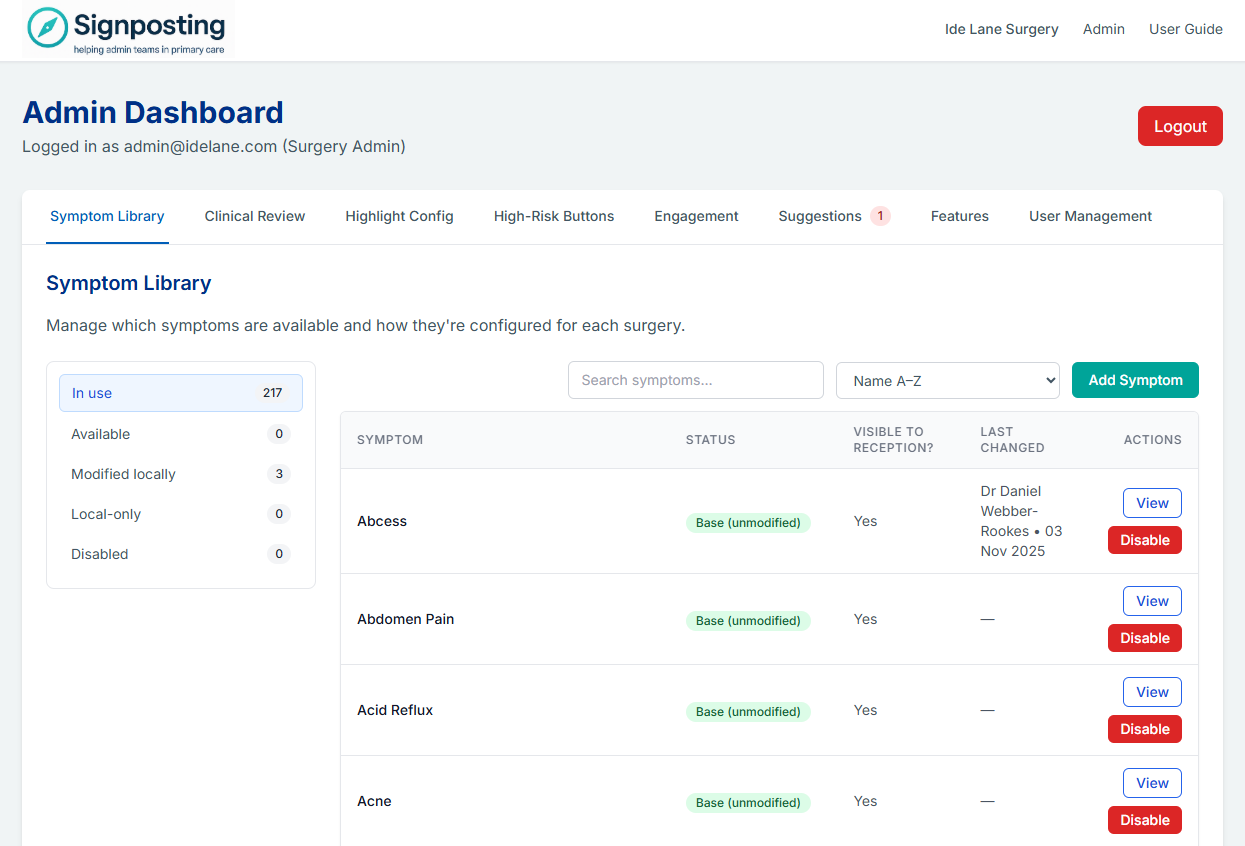
Symptom Library – admin view
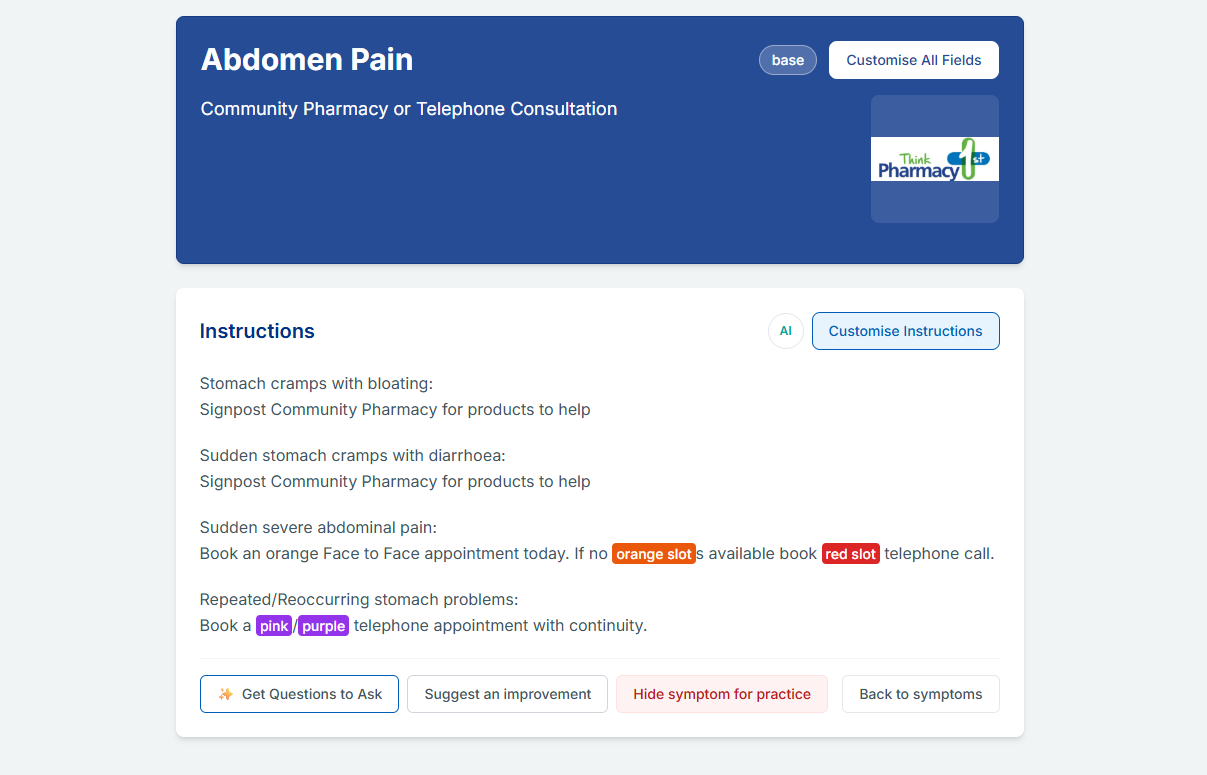
Symptom detail – instructions and AI Suggested Questions
Last updated: December 2025