For clinical reviewers
Clinical reviewer guide
Your role as a clinical reviewer, what your approval means and how review status relates to what staff see.
- Clinical reviewers
Reception and care-navigation staff act on the wording in each card. As a clinical reviewer, you check that wording for your practice and approve it when it is safe, accurate and matches how your practice works.
This guide covers:
- What to check on every card, a printable checklist
- Working through the queue: approving, requesting changes, bulk approval and re-review
- AI drafts and smart visuals: what to look for in AI-prepared wording
- Periodic review: keeping approved cards up to date
Who reviews
Ideally a GP partner or clinical lead reviews the cards. Experienced nurses, advanced nurse practitioners (ANPs) and pharmacists can also review cards within their scope of practice. Whoever reviews should know your local workflows well enough to spot when a route is wrong, for example when a card sends patients to an appointment your practice doesn’t offer.
You need a Practice admin account at your practice to open Clinical Review. If you can’t see it, ask your practice manager to change your role in ☰ MenuPractice settingsUsers & access. See Team and access.
If two clinicians share the work, agree who is reviewing what before you start. See Dividing the work.
What your approval means
When you approve a card, you are confirming that you have checked that version of the card — its wording, local booking routes, restrictions and escalation instructions — and that it is right for your practice.
- Approval applies to the wording you checked. If anyone at your practice saves a change to the card afterwards, it goes back to Pending and needs approving again. Any edits you make during review count too: approve after you have saved them.
- Each age group is a separate card. If your practice uses age bands, the Under 5, 5–17 and Adult versions of a symptom are each reviewed and approved separately. Practices that use one card for all ages review a single card per symptom.
- Your name and the date are recorded. Staff opening an approved card see “Approved on [date] by [your name]” at the top.
- Updates to shared cards don’t undo your approval. When the Signposting Toolkit team updates a shared card centrally, your practice’s approval stays in place. The release notes announce these changes, so check them. See Periodic review.
- Approval doesn’t cover AI suggested questions. Staff can generate these on request; they are not saved or reviewed. See AI drafts and smart visuals.
Open Clinical Review
- Open the menu and choose Signposting settings.
- Select the Clinical Review tab.
During setup you can also use Open clinical review or Continue clinical review on your practice’s setup page (☰ MenuPractice settingsSetup & onboarding).
If you work at more than one practice, check the practice name before you approve anything.
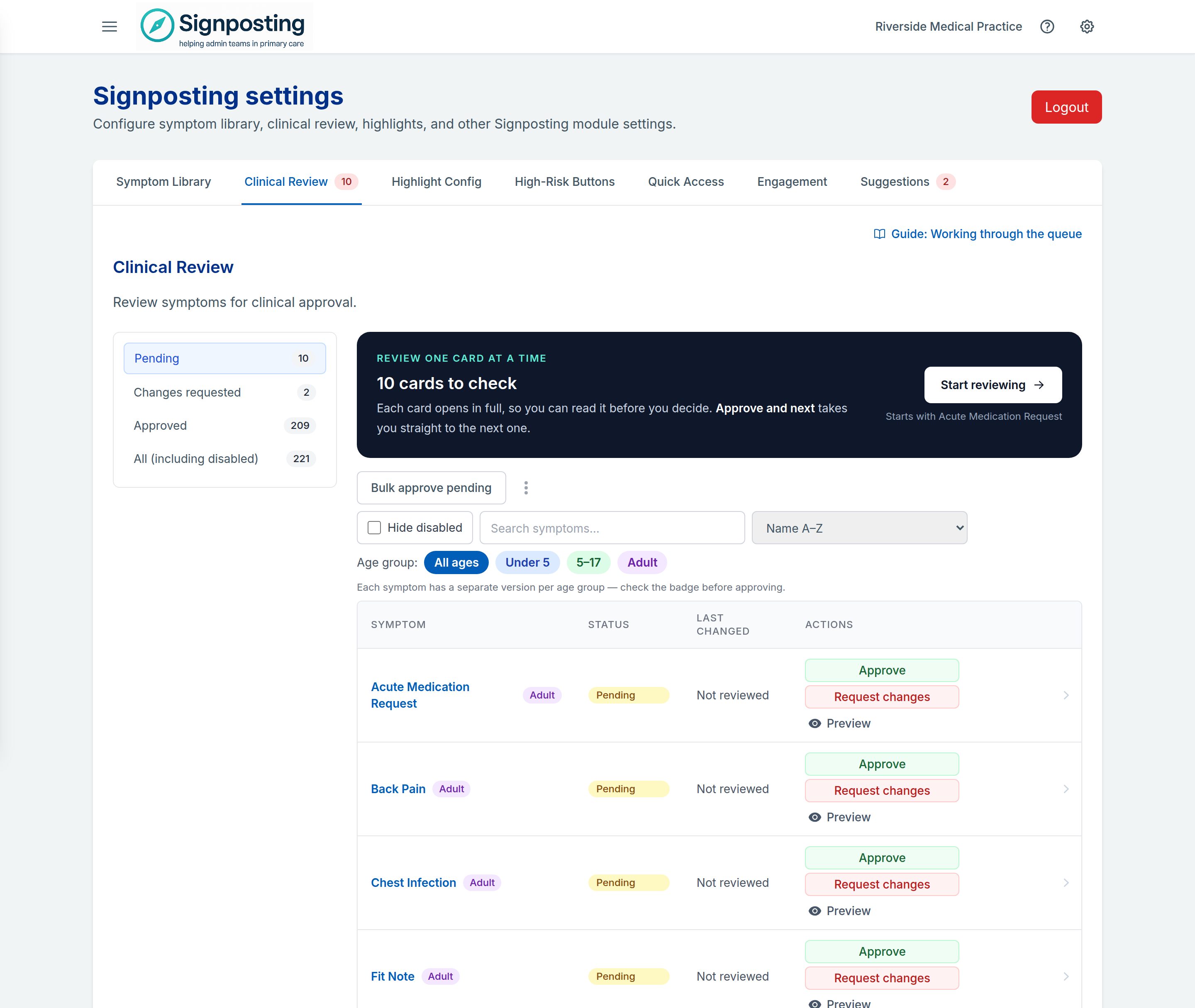
If your practice hasn’t finished preparing its cards, a notice at the top says Before you review: choose how to prepare your cards. You can still review, but reviewing before AI customisation runs means checking wording that may then be replaced. See Stage 2 of setup.
While a generation run is unfinished, the notice says Card generation is unfinished instead, with Open saved progress. AI won’t rewrite a card you review or edit before generation reaches it.
Review status and what staff see
Review status and visibility are separate. Whether staff can see a card depends on whether it is switched on for your practice, not on its review status.
New or edited wording, including AI wording, waiting for a clinical reviewer.
Staff see: the card, with a yellow Pending clinical review banner.
- Either the reviewer approves itApproved
Any later edit your practice saves sends it back to Pending. Central updates to a shared card don’t.
Staff see: the card, with “Approved on [date] by [name]”.
- Or the reviewer requests changesChanges requested
Saving the fix sends it back to Pending.
Staff see: the card, with a Changes requested banner and the reviewer’s note.
Switched off, whatever its status: staff see nothing. New cards start switched off. Requesting changes doesn’t switch a card off; use Request changes and disable.
| Card | What staff see | Counted in the home-page notice? |
|---|---|---|
| Switched on, Pending | The card, with a yellow Pending clinical review banner at the top | Yes |
| Switched on, Changes requested | The card, with a Changes requested banner and your reviewer note | Yes |
| Switched on, Approved | The card, with “Approved on [date] by [name]“ | No |
| Switched off (any status) | Nothing: the card isn’t in their library | No |
A few other points:
- New symptoms start switched off. A symptom your practice creates starts Pending and switched off, so staff don’t see it until someone switches it on. Approve it before it’s switched on if you can.
- Smart visuals wait for your approval. A saved smart visual isn’t shown to staff until the symptom is approved; until then they see the standard instructions. See AI drafts and smart visuals.
- The preview tells you. When you select Preview on a card, the preview shows Visible to reception: Yes or No.
The home-page notice
While any switched-on card is Pending or has changes requested, everyone at your practice, including admins, sees a notice on the signposting home page:
- Fewer than 5 cards waiting: a one-line note, such as “3 symptoms are awaiting clinical review. If you’re unsure, please check with a clinician before booking.”
- 5 or more cards waiting: a more prominent warning that your practice’s content “is awaiting local clinical review”.
The notice goes once every switched-on card is approved. Switched-off cards don’t count towards it.
Related
Clinical governance sets out who is responsible for what. Reading a card shows what staff see, including the pending warning.