For reception teams
Reading a card
What each part of a symptom card means, and the order to read it in on a call.
- Reception teams
When you open a symptom, you see its full card. Every card follows the same layout, so once you know where things are you can read one quickly while the patient waits.
Approved on 12 Sep 2026 by Dr J Taylor
Sore throat
AdultCommunity Pharmacy (Pharmacy First). Routine GP appointment if it has lasted more than a week.
Important Notice
Ask about breathing and swallowing first. Difficulty breathing, drooling or unable to swallow: call 999.
Instructions
Most sore throats get better on their own within a week.
Direct the patient to Community Pharmacy. The pharmacist can assess and treat many sore throats under Pharmacy First.
Book a routine GP appointment if the sore throat has lasted more than a week or keeps coming back.
🔴 Same day: book with the duty GP if the patient feels very unwell, has a very high temperature or has a weakened immune system.
Related Information
For more detailed information, please see:
→ Earache
→ Cough
- 1.
Review status
Whether your practice's clinical reviewer has approved this card, with the date and who approved it. A yellow Pending clinical review strip means the wording hasn't been signed off yet, and a red Changes requested strip means the reviewer has asked for changes (it may show their note). You can still follow the card, but check with a clinician if you're worried.
- 2.
Name and age badge
The symptom and the age group this version is for: Under 5, 5–17 or Adult. Check it matches your patient. If your practice uses one card for all ages, there is no badge.
- 3.
Brief instruction
A one-line summary of where the patient usually goes. Read it first, then read the detail below.
- 4.
Important Notice
The red box above the instructions holds what you mustn't miss, often the urgent signs to ask about first. Not every card has one.
- 5.
Standard / Smart visual
Only shown when your practice has an approved smart visual for this card. The card then opens on the visual; select Standard for the written instructions, as shown here. More about smart visuals.
- 6.
Highlighted phrase
Your practice colours key phrases, such as services and appointment types, so they stand out. Your practice decides what each colour means, so ask your admin if you're not sure.
- 7.
Urgent advice
Cards say when a patient needs to be seen the same day, or needs 999 or A&E. If the caller describes any of these, follow that advice straight away or speak to a clinician.
- 8.
Get Questions to Ask
Only there if your practice has switched it on for you. AI suggests questions from this card. They are not clinically reviewed, so the card comes first.
- 9.
Suggest an improvement
Tell your practice's toolkit administrators about wording that looks wrong or a service that has changed. How to send feedback.
- 10.
Back to symptoms
Takes you back to your search results, with the same search and filters.
- 11.
Related Information
Links to other cards that are often relevant at the same time. Select one to open its instructions.
Read it in this order
- Check the age badge matches your patient.
- Read the brief instruction for the usual route.
- Read the Important Notice, if there is one. It often lists urgent signs to ask about first.
- Work through the instructions in order. They’re written for non-clinical staff in plain English, and tell you what to do next, for example direct the patient to a community pharmacy, book a routine or same-day appointment, or escalate urgently. The appointment names are the ones your practice uses.
- Re-read the urgent advice before you book. If the caller describes any of it, follow it straight away.
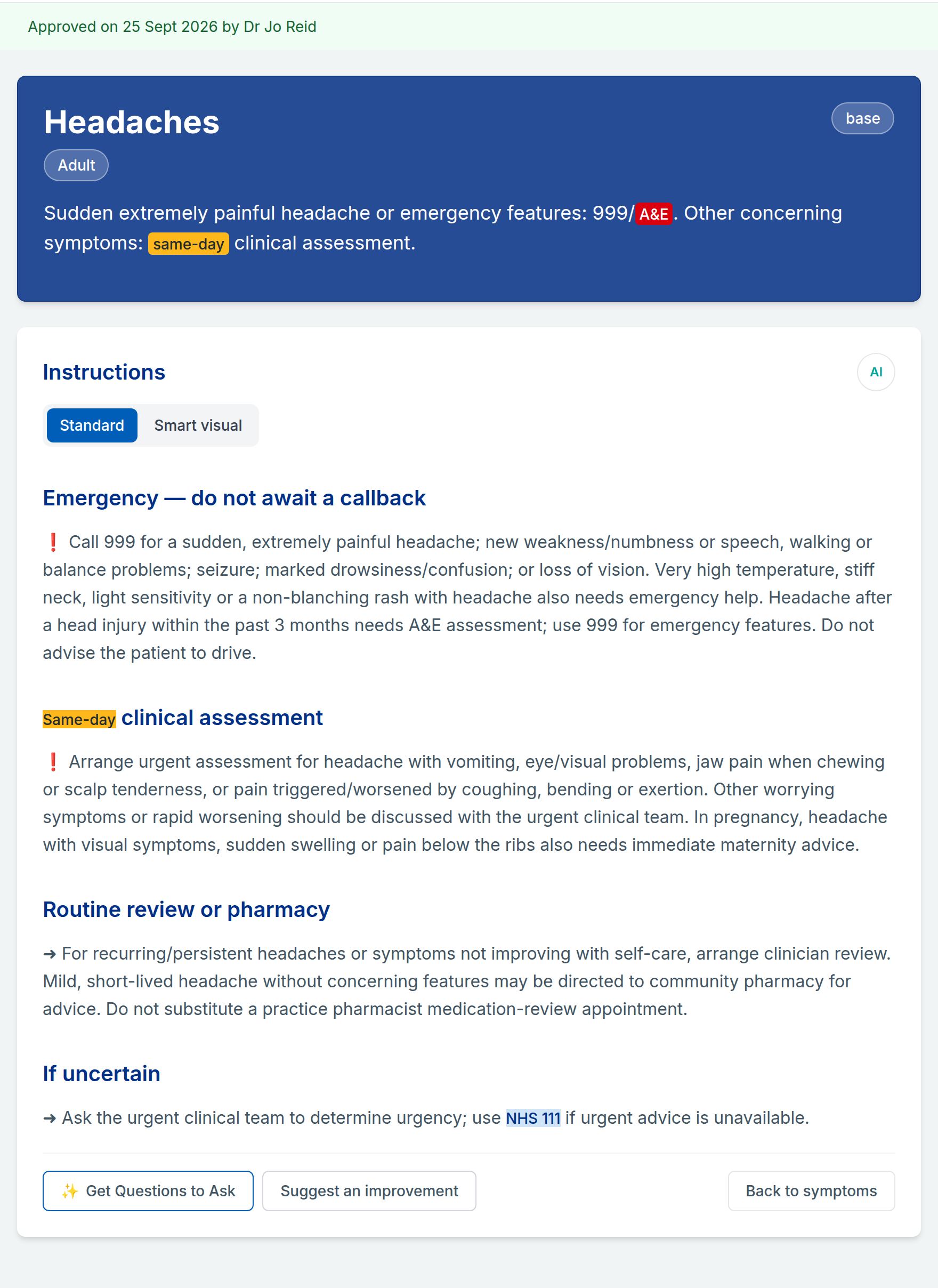
If none of the card fits what the caller is telling you, don’t force it. See When you’re unsure.
Review status
A strip at the top of each card shows where it is in your practice’s clinical review:
- Green: Approved on a date, with the name of the reviewer who approved it.
- Yellow: Pending clinical review. The wording hasn’t been signed off yet, for example because it’s new or was changed recently.
- Red: Changes requested. The reviewer has asked for changes, and their note may be shown underneath.
A card that isn’t approved is still shown, so you can use it. Follow it, but check with a clinician if you’re worried about the patient.
The notice on the signposting page
When cards are waiting for review, a notice also appears across the signposting page, above the cards. It counts the switched-on cards that are pending review or marked as needing changes:
- 1 to 4 cards: a one-line note, for example 3 symptoms are awaiting clinical review.
- 5 or more: a yellow warning that your practice’s content is awaiting local clinical review. You’ll usually see this in a newly set-up practice.
Both ask you to check with a clinician before booking if you’re unsure. Everyone sees the notice, including practice admins.
Highlighted phrases
Some phrases are coloured to catch your eye, such as appointment types and local services. The colours can appear in the brief instruction, the Important Notice and the instructions.
Your practice decides which phrases are coloured and what each colour means, usually to match its appointment book, so ask your practice admin what they mean at your practice. For example, some practices name types of appointment by colour, such as green slot or red slot.
Highlights make words stand out. They don’t change what the card says, so read the whole sentence.
Pictures on a card
- Icons: your practice may show a small picture beside the brief instruction, for example a pharmacy symbol. It appears on the card in the list and on the full card.
- Images in the instructions: some cards include a flowchart, a reference photo or a step-by-step picture guide. Select an image to view it full-screen. Then:
- zoom with the Zoom in and Zoom out buttons, the scroll wheel, a pinch on a touchscreen, a double-click, or the + and − keys
- drag to move around a zoomed image
- press 0 or select Reset zoom to fit it to the screen again
- press Esc, select the background or select Close image to go back to the card
Age-group advice
Some cards have buttons for different age groups, such as Under 5 or Adult, above or below the instructions. Selecting one shows that age group’s advice in place of the main instructions. See Age groups.
Related Information
Some cards link to other cards that are often relevant at the same time. For example, a chest pain card might link to breathing problems and palpitations. The links are in the Related Information panel near the bottom of the card; select one to open that card.
In the list of cards, the first related link shows at the bottom of each card, with +N more when there are several.
What the cards in the list show
Before you open a card, the list already shows:
- the symptom name and its age badge
- a New or Updated badge if it has changed recently (see What’s changed)
- the brief instruction
- the start of the Important Notice, in red
- the first related link, and the practice’s icon if there is one
With quick-scan cards switched on in Preferences, the list shows only the name and age badge.
Related: Finding a symptom · High-risk and quick access buttons · Sending feedback