Setting up your practice
Review your cards
Stage 3: your clinical reviewer checks and approves every card before setup is complete.
- Clinical reviewers
- Practice admins
This page covers getting the setup stage done. For how to review a card, see the Clinical reviewer guide.
Who does it
A clinical reviewer — ideally a GP partner or clinical lead. Experienced nurses or ANPs can review cards within their scope. Whoever reviews needs to know your local arrangements well enough to spot a wrong route.
Making the changes a reviewer asks for doesn’t need a clinician: any practice admin can do it, and the card then comes back to the reviewer to check.
Two reviewers can share the work. Agree who covers which cards before you start, for example by alphabetical range or age group, and note where each of you stopped. Sorting one list A to Z and another Z to A doesn’t reserve cards or stop you overlapping.
Steps
- Prepare the wording first. Finish stage 2, by generating AI drafts or choosing Use existing wording, before working through the library. That way you don’t review text that is later replaced.
- On the setup page, choose Check cards (Check rewrites when every waiting card is an AI draft). Check the practice name at the top, especially if you look after more than one practice.
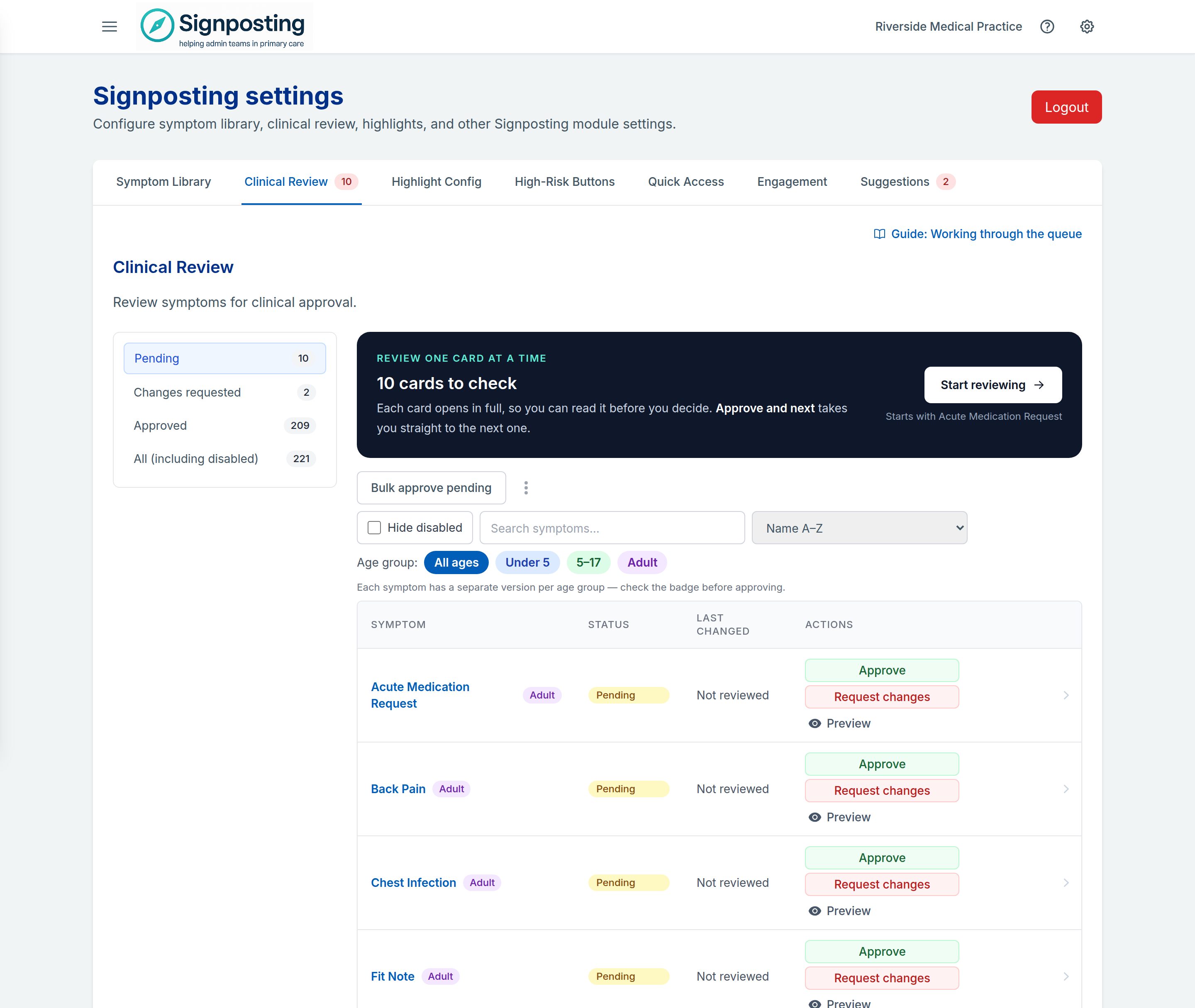
- Start with the Pending queue. Use search, the sort menu or the age filters to narrow it if you like. High-risk symptoms first in the sort menu brings urgent symptoms such as chest pain and stroke to the top. Then choose Start reviewing to open the first card.
- Read each card in full, edit it if needed, then approve it. Approve and next takes you to the next card. If something needs resolving, choose Request changes and leave a specific note.
- Work through the Changes requested queue. Start making changes opens the first card in its editor with the reviewer’s note beside it, and Save and next moves on to the next. Saving sends the card back to Pending, where the reviewer checks and approves the final wording. See Resolving requested changes.
- Before you finish, clear search and age filters, choose All (including disabled) and check that nothing is left in either queue.
If stage 2 isn’t done when you open review, a notice offers Customise cards with AI (or Complete practice questionnaire) and Use existing wording. You can still review cards below it.
If card generation is unfinished, the notice says Card generation is unfinished and offers Open saved progress instead. AI won’t rewrite a card you review or edit before generation reaches it.
For each step in more detail — what to check, the queues, Previous and Next, bulk approval — see Working through the queue and What to check. For AI drafts, see AI drafts and smart visuals.
What done looks like
The Review and approve your cards card is ticked, with All cards reviewed, when all of these are true across your whole library:
- at least one card is approved
- no cards are pending
- no cards have changes requested
The counts include disabled cards, and each age-group version of a card counts separately. An empty filtered list doesn’t prove the review is finished — go back to the setup page and check that it shows every card approved.
Common questions
Does disabling a card count as reviewing it? No. A disabled card still counts if it is pending or has changes requested. Hide disabled only changes what you see.
Can I approve everything at once? Bulk approve pending exists, but use it only after you have actually reviewed every card it will approve. Don’t use it just to clear the queue. It leaves out AI drafts and cards edited since they were last reviewed: approve those one at a time.
We edited a card after approving it. Editing sends that card back to Pending, so it needs approving again. The final wording is what gets approved.
New cards arrived from the shared library. New cards start as Pending and need review like any other.
Next: Prepare your team.