Running your toolkit
Setup checklist and Surgery Health
Track your practice's setup steps, then keep an eye on reviews, usage and content once you're live.
- Practice admins
The same page does two jobs. While you’re setting up, it shows your setup stages and a checklist of every step. Once setup is finished or your practice has gone live, it becomes Surgery Health: a short dashboard of what needs attention.
☰ MenuPractice settingsSetup & onboardingPractice settings has one card for this page, named after what the page shows: Setup & onboarding while you’re setting up, and Surgery Health once the page becomes Surgery Health. Until your practice questionnaire is finished, the menu also shows Begin setup or Finish setup, which opens the same page.
While you’re setting up, the card shows a badge with the number of essential steps still to do, and Complete once they’re all done. Once your practice has gone live, it shows Live.
For working through the four setup stages, see Set up your practice.
The setup checklist
Below the setup stages, open All setup tasks and optional configuration to see every step in one list. It has two sections, each with a count of steps done.
Essential steps
These must all be done before your practice can go live. A progress bar shows how many are complete.
| Step | Done when | Button |
|---|---|---|
| Practice questionnaire | You’ve completed the onboarding questionnaire | Start or Edit |
| Appointment model | You’ve set up your appointment types and clinicians | Edit |
| Add team members | At least one standard user (for example a receptionist or care navigator) has been added | Manage users |
| High-risk buttons | Your high-risk buttons for urgent symptoms, such as chest pain and stroke, are set up | Configure |
| AI customisation | You’ve saved AI-customised drafts, or chosen to keep your existing wording | Open AI customisation |
| Clinical review | Every card has been dealt with: none pending, no changes outstanding, and at least one approved | Review now or View |
The AI customisation step appears only if AI customisation is switched on for your practice, and it opens once the questionnaire is complete. Steps for features you don’t have are left out of the count rather than ticked.
Recommended steps
These aren’t needed to go live, but they improve your team’s experience.
| Step | Done when | Button |
|---|---|---|
| Appointment directory | At least one local service or appointment type has been added | Set up |
| Highlight rules | Your practice has at least one highlight rule of its own switched on, or has chosen to go without highlights | Configure |
| Practice Handbook | At least one handbook page exists (only if your practice has the handbook) | Open |
When every essential step is done but some recommended ones aren’t, a banner says your surgery is ready to go live.
Under Make it your own, two optional cards stay available at any time: Choose highlights and, if you have the Practice Handbook, Open handbook starter. The highlights card shows whether your practice has set highlights up or chosen to go without them. See Highlights and buttons and Practice Handbook.
Whether highlights would help
Highlights are optional, so this step is about deciding rather than doing. Once your cards carry your own wording (your practice details are saved and your cards are prepared), the setup page asks Would highlights help your team? A practice that is already live sees the question on Surgery Health. There are three answers:
- Choose highlights opens the highlight setup, which suggests phrases from your practice details.
- Not now puts the question off. It comes back once, on Surgery Health, at least four weeks after your practice goes live. Choose Not now again and it doesn’t come back.
- We don’t need highlights records that your practice has decided, and ticks the Highlight rules step. If you add a highlight later, that choice no longer stands.
The answer is your practice’s, not one person’s: whichever practice admin answers, it counts for everyone, and you’re never asked more than twice. Highlights never add to the count of outstanding setup tasks, and staff never see the question. You can still choose highlights at any time from Make it your own.
When the page becomes Surgery Health
The page switches to Surgery Health when either:
- every essential and recommended step is complete, or
- your practice has gone live
Your practice goes live the first time every essential step is complete and someone signed in with their own account has used the toolkit in the last 30 days. The date is recorded once and shown as Live since under the page title.
After go-live
Going live is a milestone, not a state you can drop out of. After go-live the page stays on Surgery Health, even when a setup step lapses.
For example, editing a card after go-live sends that card back to clinical review, and a new card may arrive from the shared library. That doesn’t send your practice back into setup. The Clinical Governance card shows how many cards are waiting instead. Keeping on top of those reviews is part of running the toolkit; see After go-live.
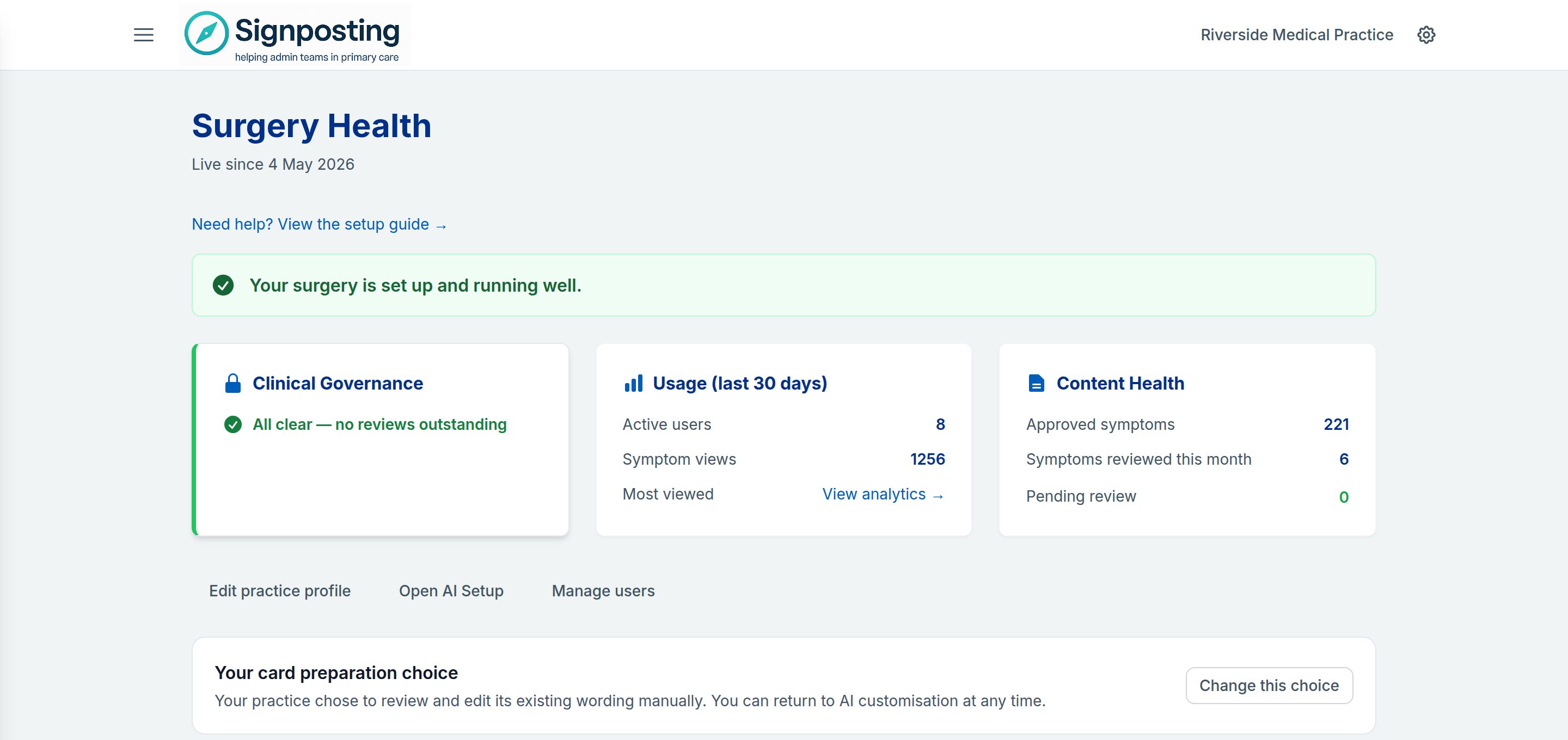
Surgery Health
A banner at the top gives the overall picture:
- Your surgery is set up and running well. when nothing is waiting for review
- a note that a few items need your attention when any card is pending or has changes requested
- a warning that clinical review needs attention when 10 or more cards are pending
A newly live practice with no activity yet sees a You’re all set! message, which you can dismiss.
The three cards
| Card | What it shows |
|---|---|
| Clinical Governance | Pending review and Changes requested counts, each linking to Clinical Review, and Last review activity. When nothing is outstanding it shows All clear — no reviews outstanding. |
| Usage (last 30 days) | Active users and Symptom views in the last 30 days, with a link to Analytics. |
| Content Health | Approved symptoms, Symptoms reviewed this month (reviewed in the last 30 days) and Pending review. |
The Clinical Governance card’s edge turns amber when anything is waiting and red at 10 or more pending cards.
What to do with each figure
- Pending review. These cards are waiting for your clinical reviewer. Choose Review → or Review pending and agree a time to clear them; staff see a notice on cards that are still pending. See Working through the queue.
- Changes requested. Your reviewer has sent these back. Open each one, make the change, and it will return for review.
- Last review activity. If this is weeks ago and cards are waiting, check that your reviewer has time set aside.
- Active users. Counts people signed in with their own accounts. A low number with plenty of views usually means staff are using a shared login. See Team and access.
- Symptom views. None after go-live usually means the team hasn’t started using the toolkit. Share the link and a quick demo; see Prepare your team.
- Symptoms reviewed this month. If none have been reviewed recently, the card suggests reviewing older content. A steady trickle of reviews keeps cards current; see Periodic review. When at least half of approved symptoms were reviewed this month, the card says content is actively maintained.
Quick actions
Buttons under the cards take you straight to common jobs:
- Review pending (shown when cards are waiting), which opens Clinical Review
- Edit practice profile, which opens your practice questionnaire
- Open AI Setup (if AI customisation is switched on)
- Manage users
If your practice chose to keep its existing wording rather than use AI customisation, a Your card preparation choice panel reminds you, and you can return to AI customisation at any time.
For more detail on usage, see Analytics and engagement.