Running your toolkit
Team and access
Add your team, set their roles, reset passwords and choose who can use the AI tools.
- Practice admins
Everyone who uses the toolkit at your practice needs their own account. Own accounts let the engagement figures show who is using it, and they mean you can remove one person’s access without affecting anyone else.
Users & access
☰ MenuPractice settingsUsers & access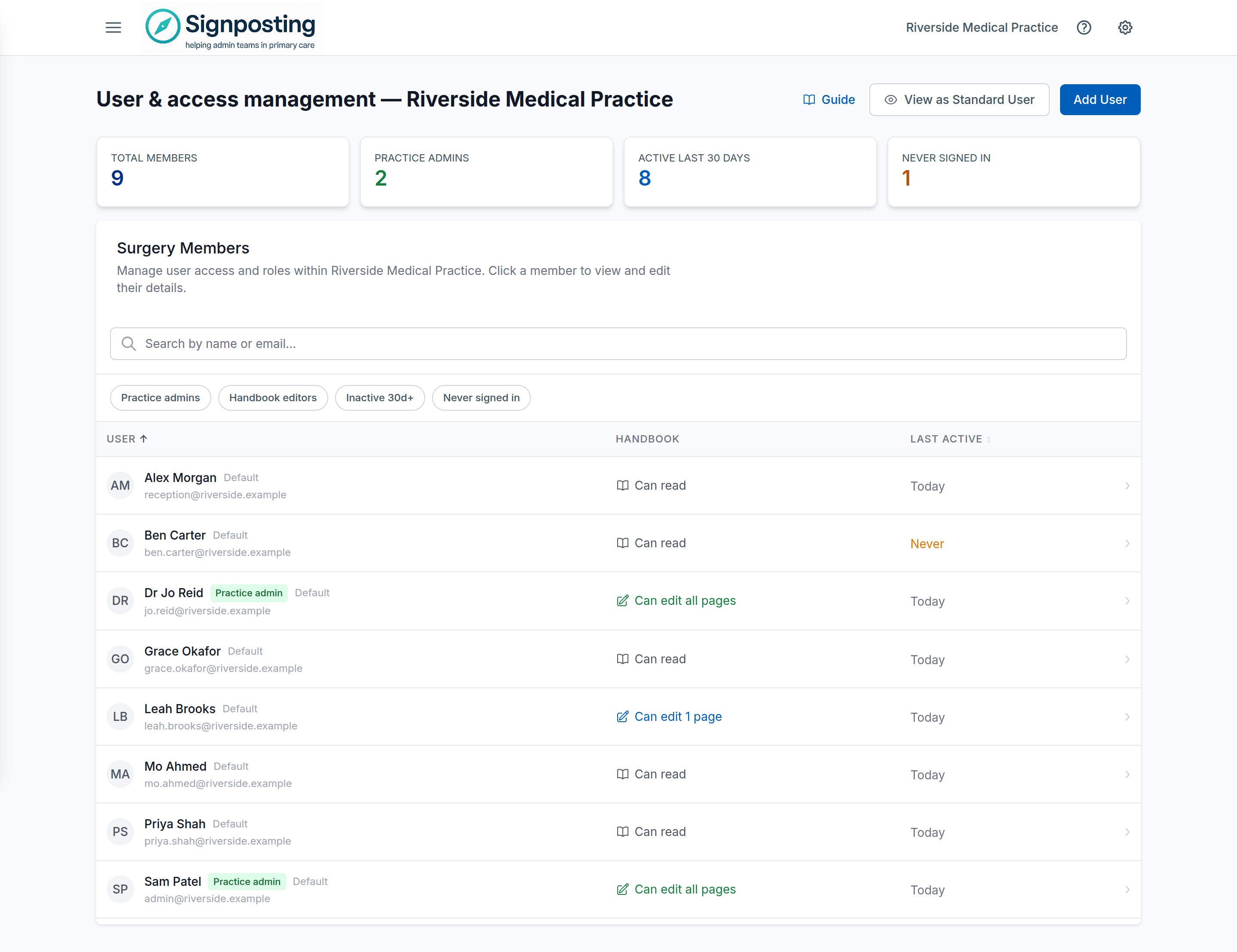
The page opens with four figures: Total members, Practice admins, Active last 30 days and Never signed in. Below them is the member list.
To find people:
- Search by name or email.
- Use the filter chips: Practice admins, Handbook editors (if your practice has the Practice Handbook), Inactive 30d+ and Never signed in. Select Clear all to reset.
- Select the User or Last active column heading to sort. Sorting by last active is a quick way to spot accounts nobody uses.
The Last active column shows when each person last used the toolkit at your practice. Anything they do there counts, including clinical review and admin work, but leaving a page open doesn’t. Never is highlighted for accounts that have never signed in. Review these from time to time and remove access for people who have left.
If your practice has the Practice Handbook, the Handbook column shows what each person can do in it: Can read, Can edit 1 page (or however many pages they can edit), Can edit 1 category for someone who looks after a category (with any other pages they can edit, as in Can edit 1 category and 2 pages), or Can edit all pages for practice admins. Everyone at your practice can read the handbook, so there’s nothing to switch on for each person. If a category is restricted, people who can’t see it have, for example, 1 category hidden beside their access. See Who can see and edit it.
Add someone
- Select Add User.
- Enter their Email Address and Full Name.
- Choose a Role: Standard User or Practice admin. See Roles.
- Enter a Password if they are new to the toolkit.
- Select Add User.
If the person already has a Signposting Toolkit account (for example, from another practice), that account is added to your practice as it is. Their existing password is kept and the password box doesn’t apply, so leave it blank.
The toolkit doesn’t email new users, so give them their sign-in details yourself and ask them to sign in at the usual login page.
Change someone’s details or role
Select a person in the list to open their panel. It shows their role, whether your practice is their default, and when they were last active. From there you can:
- change their Full Name or Role, then select Save changes. Their email address can’t be changed.
- see what they can read and edit in the Practice Handbook, if your practice has it, with the categories they look after and a link to each page they can edit. Pages set to All standard users can edit are marked All standard users. To let a standard user edit a page, add them as an editor of that page in the handbook settings; to let them look after a whole category, add them as an editor of the category. Practice admins can always edit the handbook. See Letting staff edit a page and Letting a team look after a category.
- select Set as default surgery, so they land on your practice when they sign in. This matters for people who work at more than one practice.
A role change applies at their next page load. They don’t need to sign out.
Reset a password
- Open the person’s panel and select Reset password.
- Enter the New Password and select Reset password again.
They are signed out everywhere and must sign in with the new password. Tell them the new password yourself.
You can only reset the password of an account that belongs solely to practices you administer. See What you can’t do.
Remove someone’s access
- Open the person’s panel and select Remove access.
- Confirm with Remove.
This removes them from your practice but keeps their account. Their access ends on their next page load or action, even if they still have the toolkit open. They stay signed in to any other practice they belong to.
Roles
There are two roles at a practice:
- Standard User — for reception and care-navigation staff. They can use the signposting page, the appointments directory, and the Practice Handbook and workflows if your practice has them. They can send suggestions and set their own display preferences. They can’t edit or approve cards. They can edit particular handbook pages, or look after a whole handbook category, if you give them access.
- Practice admin — for practice managers, lead clinicians and anyone who looks after the toolkit. Admins can do everything a standard user can, plus everything in Signposting settings and Practice settings: edit and approve cards, manage the team, highlights, buttons, appointments, the handbook and workflows, and see engagement figures.
Clinical reviewers need a Practice admin account to open Clinical Review.
A person can have a different role at each practice they belong to. For the full table, see Roles and permissions.
See what standard users see
To check what your team can and can’t do, view the toolkit as a standard user. You stay signed in as yourself, so there’s no need for a test account.
- On Users & access, select View as Standard User. It’s also in the menu, under Management.
- Check the practice, then select View as Standard User.
Your practice opens as a standard user sees it: their cards, buttons, handbook pages and workflows, without Signposting settings or Practice settings. A dark blue bar across the top of every page says who you’re viewing as.
To go back, select Back to my view in the bar or at the top of the menu. You stay on the same page, so you can compare the two.
More about viewing as a standard user
- If you open a page standard users can’t, such as Users & access, the toolkit says so. Select Back to my view to open it.
- You see what any standard user sees. Handbook pages and categories shared with people by name aren’t shown to you, even if you’re named or look after the category, and you can only edit pages every standard user can.
- If you run more than one practice, choose which one in the window that opens. While viewing, you only see that practice.
- Cards you open count as your own views in the usage figures, as they always do.
- Viewing lasts until you go back to your own view or sign out. Starting and ending it are recorded in the account audit trail.
Module access
☰ MenuPractice settingsModule accessThis page shows what your practice has and lets you choose who can use some of the AI tools.
- Core modules (Workflow guidance and the Practice Handbook) are on or off for the whole practice. When one is on, everyone at your practice can use it.
- AI features — under Practice-level access, each AI tool shows Available or Off for your practice. Only the Signposting Toolkit team can change these; contact them to change what your practice has.
Switch AI tools off or on for one person
Under User-level access, each member has a switch for each AI tool that is available at your practice. Tools that are off for the whole practice show a lock.
The two switches that make a difference are:
- AI instruction editor — the round AI button on a symptom page. See Improve a card’s wording.
- AI question prompts — Get Questions to Ask on a symptom page. See AI suggested questions.
To switch a tool on for your whole team at once, use Enable for all users… above the list.
Someone with no individual setting gets your practice’s setting. The list also has a switch for AI surgery-specific customisation, but that tool is controlled for the whole practice, so switching it for one person has no effect. Smart visuals are also practice-wide.
Staff who work at more than one practice
One account can belong to several practices, with a different role at each. Each person has one default surgery: the practice they land on after signing in. Set it from their panel (see Change someone’s details or role).
Their Last active time on your Users & access page only counts what they do at your practice.
What you can’t do
Accounts belong to people, not practices. You administer your practice’s access, not the account itself. So you can’t:
- change or remove a system administrator’s account. Their panel says it is managed by the Signposting Toolkit team.
- reset the password, name or default practice of an account that also belongs to a practice you don’t administer. The account holder, or the Signposting Toolkit team, changes these.
These limits stop anyone taking over an account by adding it to their practice and resetting its password. Account changes, password resets and sign-ins are recorded in an audit trail. See Data and security.
Related: Roles and permissions · Prepare your team