Running your toolkit
Cards
Add practice symptoms, customise shared cards, switch cards off and on, and manage variants, images, links and notices.
- Practice admins
Your practice’s symptom cards come from two places:
- Shared cards from the Signposting Toolkit library. They are a starting point: you adapt the wording to your own services and booking routes.
- Practice symptoms that your practice creates. Only your practice sees them, and library updates don’t touch them.
- Signposting Toolkit teamShared library
Cards maintained for every practice to start from.
- Your practiceAdapt it
- Use a shared card as it is
- Customise it for your services: labelled Practice Customised
- Hide one that doesn’t apply
- Add your own practice symptoms: labelled Practice Created
- Your reception teamYour library
The switched-on cards: shared, customised and your own. Any not yet approved show a warning.
Every edit to a card’s wording goes to clinical review. Revert puts a customised card back to the shared wording and keeps its review status.
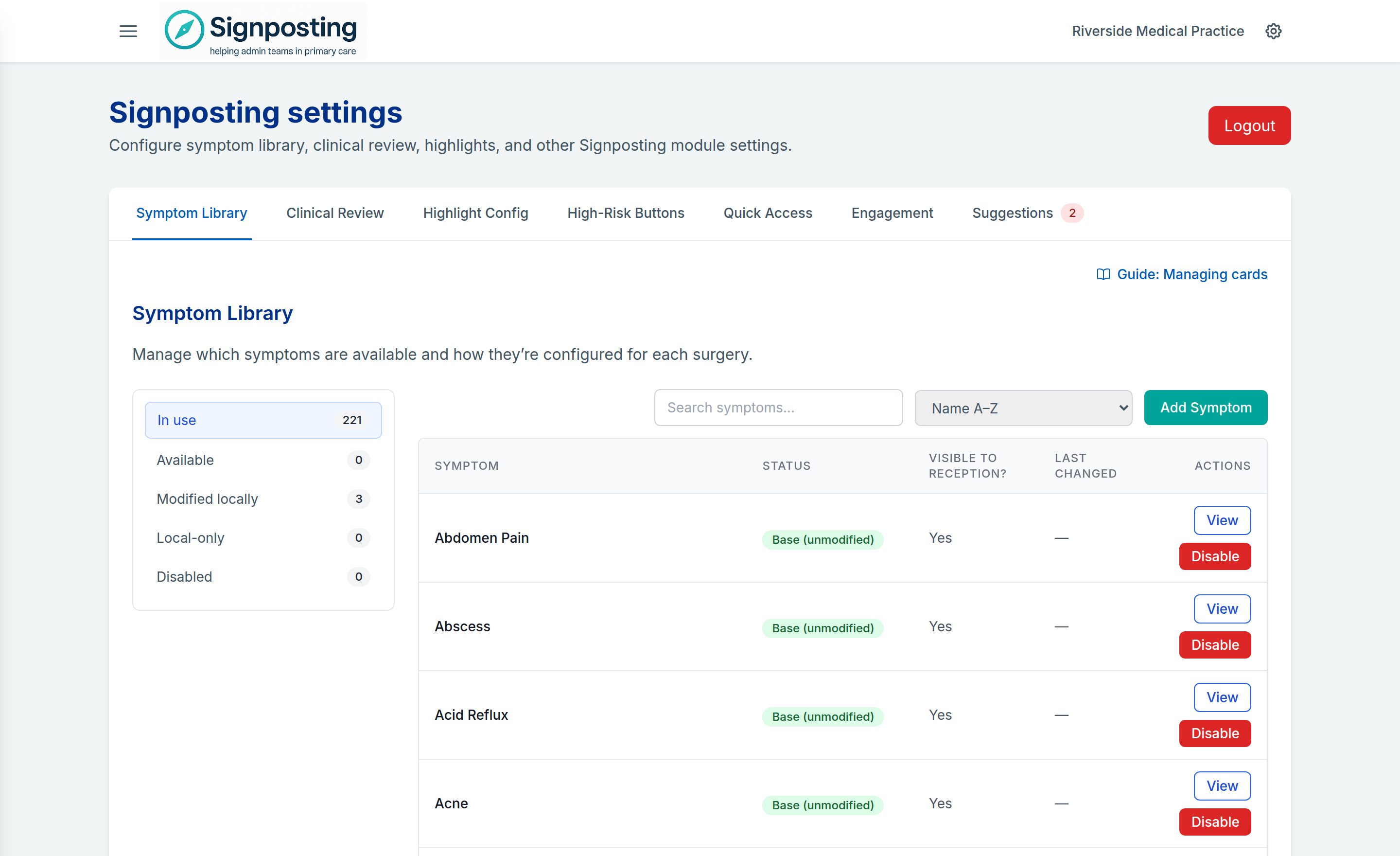
The Symptom Library tab
☰ MenuSignposting settingsSymptom LibraryThe folders down the left sort your cards:
- In use — cards your practice has.
- Available — shared cards you don’t use, including ones you’ve hidden. A green new count shows cards recently added to the shared library.
- Modified locally — shared cards you’ve customised.
- Local-only — your practice symptoms.
- Disabled — cards you’ve switched off.
For each card the list shows its status, whether it is Visible to reception?, and when it was last changed and by whom. Search with the box above the list, and sort by name, last changed or status.
The actions on each row are:
- View — preview the card without leaving the page. For a customised card, switch between Local wording and Base wording to compare your version with the shared one.
- Disable or Enable — switch a card off or back on.
- Enable at this surgery — start using a card from the Available folder.
- Revert — on a customised card, remove your practice’s wording and go back to the shared version. It happens straight away, without asking you to confirm, so check with View first.
- Delete — on a practice symptom, delete it permanently after confirming.
Add a practice symptom
- Open the Symptom Library tab and select Add Symptom.
- Enter the Name and choose the Age group (Under 5, 5–17 or Adult). If your practice uses one card for all ages, there is no age group to choose.
- Add a Brief instruction (the one-line summary on the card), an Important notice if needed, any Related information links and the Full instruction.
- Optionally add Age-group variants (see Age-group variants).
- Select Confirm & Create.
A new practice symptom starts switched off and Pending clinical review. You’ll find it in the Disabled folder. Staff see it once you select Enable, with a pending warning until it’s approved, so ask your clinical reviewer to approve it first if you can.
On the symptom page, admins see a Practice Created label beside the instructions. Staff don’t see it.
Customise a shared card
- Open the symptom from the signposting page.
- Select Customise Instructions to change the detailed instructions, or Customise All Fields to change everything on the card.
- Make your changes. A note reminds you which age group the card is for: the Under 5, 5–17 and Adult versions are separate cards, edited and reviewed separately.
- Select Save Changes.
After the first save, the card moves to the Modified locally folder and admins see a Practice Customised label beside its instructions. The buttons then read Edit Instructions and Edit All Fields.
With Customise All Fields (or Edit All Fields) you can change:
- Display name — rename the symptom for your practice, for example “Cough” to “Dry cough”. Leave it blank to use the standard name.
- Brief instruction — the one-line routing summary shown on the card.
- Important notice — see Important notices.
- Detailed instructions — the full guidance.
- Links to related symptoms — see Related symptom links.
- Variants at this practice — see Age-group variants.
Under the brief instruction and the detailed instructions, Reset to default puts back the shared wording for that field when you save. Select Undo if you change your mind before saving. To discard all your practice’s changes to a card at once, use Revert in the Symptom Library.
Highlight colours and image icons apply to all your practice’s cards rather than one card. See Highlights and buttons.
To draft new wording with AI, see AI tools. To tailor many cards at once during setup, see Customise your cards.
Take a card out of use
There are three ways, depending on the card:
- A shared card you haven’t customised — open it and select Hide symptom for practice. There is no confirmation step: it disappears from your staff’s library and moves to the Symptom Library’s Available folder. The shared card itself isn’t deleted.
- Any card in use, including customised ones — select Disable on its row in the Symptom Library. It moves to the Disabled folder and your practice’s wording is kept.
- A practice symptom you no longer need — select Delete in the Symptom Library, or Delete symptom on its page. This can’t be undone.
To bring a card back:
- From Available, select Enable at this surgery.
- From Disabled, select Enable.
A clinical reviewer can also take a card out of use while changes are made, with Request changes and disable. See Working through the queue.
Age-group variants
Some symptoms carry age-group variants: alternative instructions for particular age bands, shown to staff as chips they can select on the symptom page, before or after the main instructions. Variant content also appears in the Symptom Library preview and in Clinical Review, so reviewers see what staff will see.
On a shared card, the variants come from the shared library and are maintained by the Signposting Toolkit team. When you edit the card, choose one option under Variants at this practice:
- Use shared variants (the default) — show the variants from the shared library.
- Customise for this practice — replace the shared variants with your own wording.
- Hide variants at this practice — show no age-group variants on this symptom.
Your choice never changes what other practices see.
On a practice symptom, add variants when you create it or later from the symptom page: tick Enable variants and add the groups you need. They are visible only to your practice.
One card for all ages
Some practices prefer one card per symptom, with any age-specific advice written into the instructions. The Signposting Toolkit team switches this on for a practice on request. When it is on:
- The age filter and age badges are hidden across the signposting page, symptom pages and Clinical Review.
- Duplicate age versions of the same symptom are switched off so one card shows per symptom. Your locally edited version is kept where there is one, otherwise the Adult version. You can switch the others back on individually from the Symptom Library.
- The editor reminds you to include age-specific advice (under 5, 5–17, adult) in the single card.
- AI suggested questions cover all ages and start with a question such as “How old is the patient?”
What staff see is described in Age groups.
Images in instructions
You can add images to the instructions, for example a triage flowchart, a rash reference photo or a pictorial guide.
- While editing, select Insert image in the editor toolbar.
- Choose a JPG or PNG file of up to 2MB, and add alt text for screen readers.
- To resize it, select the image and use Image size: Small, Medium, Large or Original size.
Images work in the main instructions and in variant instructions. Images you add to your practice’s cards are private to your practice and shown only to its signed-in staff. Staff can select an image to open it full screen, then zoom and move around it.
Like any edit, adding or changing an image sends the card back to clinical review.
Related symptom links
A card can link to other symptoms that are often relevant at the same time. For example, Chest pain might link to Breathing problems and Palpitations.
- Staff see the links in a Related Information panel on the symptom page. The card in the list shows the first link, with +N more when there are several.
- Edit them with Customise All Fields (or Edit All Fields), under Links to Related Symptoms. Search for a symptom by name, or type a name, and add up to 10 links.
- Links point at a symptom’s name. If you rename a linked symptom, update the link to match.
On a shared card you can keep the standard links, replace them with your own or remove them.
Important notices
The important notice is a short warning shown in red on the card and above the instructions, such as a red flag staff must check before anything else. Edit it with Customise All Fields (or Edit All Fields). Keep it short: staff read it first.
What’s changed
The What’s changed link on the signposting page shows cards that have been added or updated, and approved, in the last 14 days (or since a date the Signposting Toolkit team has set for your practice). Cards still awaiting review aren’t shown. Each card is tagged New or Updated, with its age group, brief instruction and approval date, and you can filter to All, New or Updated.
Point staff to it after you’ve made a batch of changes. The Practice Handbook has its own version; see Practice Handbook.
New cards from the shared library
The Signposting Toolkit team improves the shared library over time. Sometimes a card one practice has written well is shared with everyone:
- A practice’s version of a shared card can replace the shared wording for every practice that uses it.
- A practice symptom can become a new shared card. The practice that wrote it keeps using it. For everyone else it starts switched off, in the Available folder with a green New badge.
To adopt a new card, select Enable at this surgery. If your practice has AI customisation, you’re then asked Customise for your practice? Choose Customise with AI to have AI adapt the wording using your practice questionnaire answers (appointment types, team roles, escalation routes), or Not now to keep the shared wording. The AI version goes to clinical review before staff see the new wording.
Central updates to shared cards don’t reset your practice’s approvals, so read the release notes to see what has changed.
Sources for the shared wording
To see the sources a shared card’s wording was checked against, select Sources for the shared wording below the card, or at the end of its preview in the Symptom Library or Clinical Review. Only practice admins see them. They aren’t shown to staff, and they aren’t copied into your practice’s wording.
If your practice has changed the wording, the line adds “checked against the shared wording, not yours”, because the sources weren’t checked against your version. Switch to Base wording in the preview to compare the two before relying on them. A card shows no sources if the shared wording has been edited since its sources were last checked.
Related: Clinical governance · Reading a card · Highlights and buttons