Setting up your practice
Describe your practice
Stage 1: answer the practice questionnaire so the toolkit knows your appointments, team and local arrangements.
- Practice admins
Who does it
Usually the practice manager, with a practice admin account. Ask your clinical lead to check the appointment and clinician sections, because AI customisation uses them to decide where patients are sent.
Steps
- On your setup page, choose Open questionnaire on the Describe your practice card.
- Work through the eight sections. You can jump to any section from the list at the top.
- Use Save and continue to move on, or Save and finish later to stop and return to the setup page.
- On the last section, Check and finish, check the summary. Use Edit beside any line to go back to that section.
- Choose Save practice details.
Your answers are saved each time you move between sections or choose Save and finish later. It isn’t continuous autosave, so move on or save before you close the page. If a save fails, you stay on the page so you can try again. On the same browser, the questionnaire usually reopens at the last section you saved.
The eight sections
- Your practice — your practice name, whether you have a duty doctor model, and the terminology you use.
- Booking rules — which appointments reception can book directly, which they must not, any appointments kept for urgent problems, and how your appointment workflow operates.
- Your appointments — your appointment types, local names and the clinicians who see patients. See Appointment types and naming.
- Your team — which clinicians you have and which roles handle particular symptoms or tasks.
- Getting help — who reception should escalate to first when they are worried about a patient, and any internal wording you use for urgent symptoms.
- Local services — the services and pathways your practice uses, such as community pharmacy, MSK and mental health, and whether to include local pathway details in instructions.
- Patient communication — how brief or detailed instructions should be, whether to use your own terminology or generic NHS wording, and how staff send patients messages.
- Check and finish — a summary of your key answers.
Optional details
Some sections have optional questions that you can expand when you need them:
- what reception should do if the right appointment isn’t available in time (Booking rules)
- how patients request routine medication, and who handles queries (Your team)
- how reception contacts the person receiving urgent concerns (Getting help)
- how reception refers eligible patients to community pharmacy (Local services)
- the messaging system staff use and any template names (Patient communication)
Leave these blank, or choose Not sure — leave generic, if you aren’t sure. Naming your messaging system doesn’t tell the AI that you have particular templates or features, so list only templates you actually use.
Appointment types and naming
Your appointments needs the most care. It is where you set the appointment model that AI customisation uses. The separate Appointments Directory is an optional reference for staff and doesn’t replace this section.
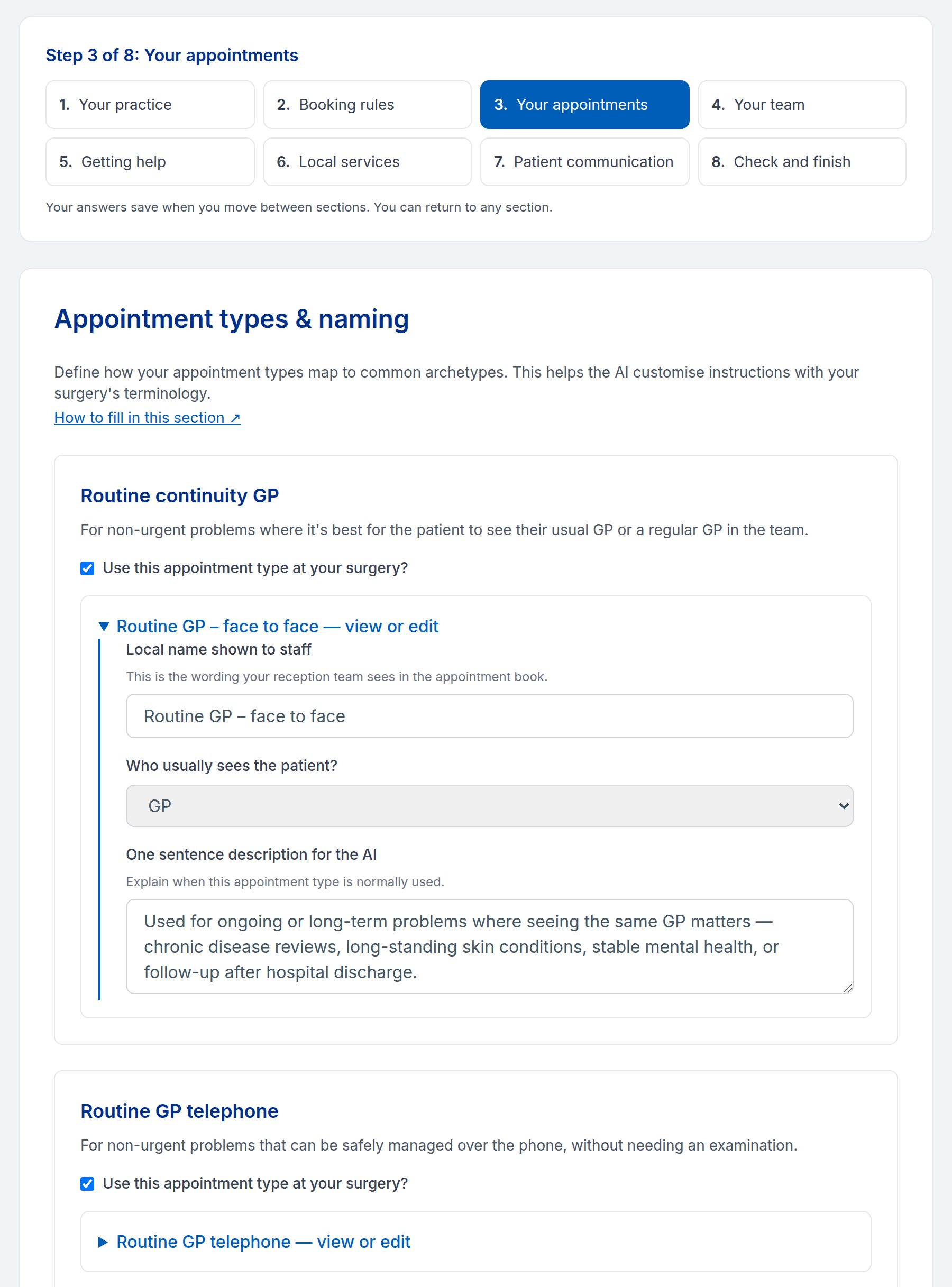
For each common appointment type, such as Routine GP telephone or Urgent same-day telephone (Duty GP):
- Tick Use this appointment type at your surgery? if your practice offers it.
- In Local name shown to staff, use the name your reception team sees in the appointment book.
- Choose Who usually sees the patient?
- In One sentence description for the AI, say when the appointment is normally used. Use suggested text fills in a starting point that you can edit.
Include who can book it, when it is available and any restrictions. Say whether it is telephone or face to face.
Then set up any Other clinician appointments — minor illness clinicians, clinical pharmacists, first contact physiotherapists and other services patients can be booked with directly.
Minor illness clinician
If your practice has a minor illness clinician (for example an ANP, paramedic practitioner or minor illness nurse), switch on Minor Illness Clinician Appointment and fill it in carefully:
- Use your local clinic name in Local name shown to staff.
- In Which conditions should this appointment type be used for?, tick only the conditions your clinical team has agreed. The list starts with every condition ticked, so untick any this clinician doesn’t see. Add others under Any additional conditions not listed above?
- Use Restrictions for exclusions, such as “not suitable for pregnant patients”.
- Tick Accepts patients under 5 years old? only if they do. If they don’t, also say so in Restrictions, so the rule is stated explicitly.
- The AI is told not to send patients to this clinic by default: only where the original card supports a minor illness pathway and there are no red flags, urgent routing or restrictions that apply.
Don’t expect the AI to work out local rules from a role name such as “ANP”. The same goes for pharmacists, physiotherapists and other roles: clear, accurate answers give you a better first draft. Your clinical reviewer still checks every card.
What done looks like
The Describe your practice card shows Details saved and is ticked when both of these are true:
- the questionnaire has been finished with Save practice details
- at least one appointment type (standard or other clinician) is switched on in Your appointments
Saving part of the way through keeps your progress but doesn’t finish the stage. In the detailed checklist these appear as two steps: Practice questionnaire and Appointment model.
Common questions
Can I change my answers later? Yes. Choose Review your answers on the setup card, or Edit practice profile on Surgery Health. Changing answers doesn’t change cards you have already saved. New answers are used the next time you preview samples or generate cards.
Two of us edited the questionnaire at the same time. If someone else saved changes while you were editing, your edits aren’t saved and a warning appears. Copy any wording you want to keep, then choose Discard unsaved edits and reload latest answers.
The questionnaire asks whether AI instructions should be set to Pending. Whatever you answer, cards rewritten by AI customisation are marked Pending clinical review.
The AI keeps sending patients to a GP. Check the clinician entries in Your appointments. Describe the agreed scope, conditions, exclusions and age limits, rather than relying on the role name. Don’t widen a clinician’s scope just to change the AI’s output.
Slot names in the drafts don’t match our system. Check the local names and descriptions in Your appointments. If your cards mention coloured slots, such as a “Red Slot”, customisation maps them to the local names you set here, so set out the names and rules you actually use. Don’t assume a colour means the same at every practice.
Next: Customise your cards.