For reception teams
Finding a symptom
Search, filter and browse the symptom cards quickly, with the mouse or the keyboard.
- Reception teams
The signposting page is the first screen you see after signing in. It lists every symptom card your practice has switched on, with the search box, age filter and A–Z letters at the top. The red high-risk buttons and your practice’s quick access buttons sit just below the search box. See High-risk and quick access buttons.
To get back to it from anywhere, select the Signposting logo at the top of the screen or choose Signposting in the menu (☰).
Search for a symptom
- Select the search box (it says Search symptoms…) or press /.
- Type the main reason for the call, for example ear pain or rash.
- The cards update as you type. Open the one that fits by selecting it.
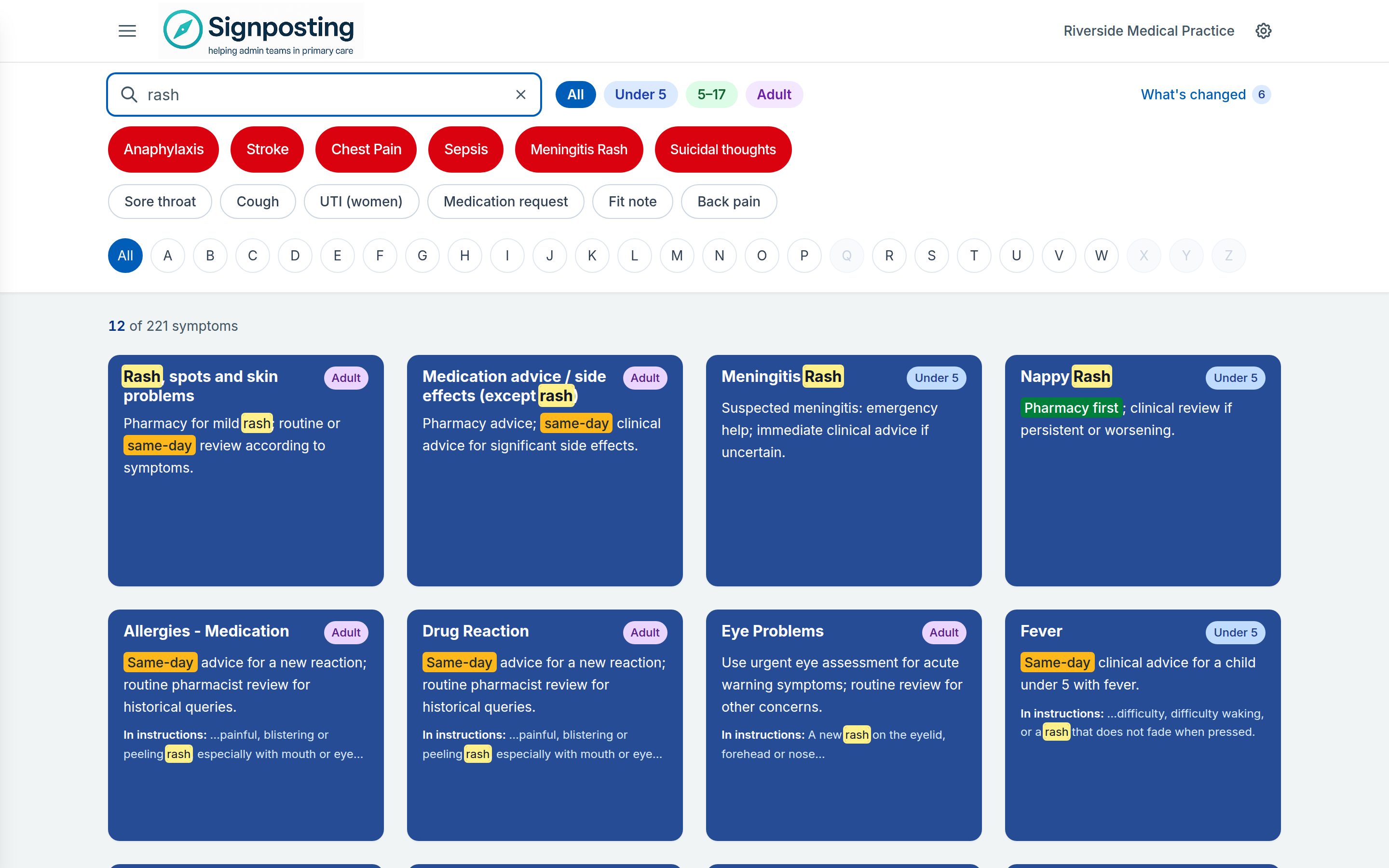
To start again, select × in the search box.
What the search looks at
The search looks for what you type in each card’s name, its brief instruction and its full instructions. It matches the words exactly as you type them, in that order, although capitals don’t matter. So:
- Short searches work best. Throat finds more than painful sore throat.
- Part of a word works: breath finds breathing and breathless.
- If nothing comes up, try a different word the card might use, for example earache instead of ear pain.
Which cards come first
While you’re searching, cards whose name matches come first:
- names that start with your search
- names with a later word that starts with it
- names that contain it anywhere else
- cards that only mention it in their instructions
Within each group, cards are in A–Z order. So searching rash lists the Rash cards before other cards that mention a rash. When you’re not searching, all the cards are in A–Z order.
Why a card matched
Your search is marked in yellow on each card: in its name, its brief instruction and its red notice. If a card only matched on its full instructions, which the card in the list doesn’t show, it quotes the sentence that matched under In instructions:.
If you use quick-scan cards (see Change how the cards look), only the name is marked.
Narrow the list
By age group
Select Under 5, 5–17 or Adult above the cards to show only that age group’s cards. Select All to show every age again. See Age groups for how age-group cards work.
The age group you choose is remembered in your browser for next time. While one is chosen, a chip such as Adult only shows above the cards, so you don’t mistake a filtered list for the whole library. Select × on the chip to show all ages.
If your practice uses one card for all ages, you won’t see the age filter.
By first letter
Select a letter to show only cards whose name starts with it. Letters with no cards (in the age group you’ve chosen) are greyed out.
- Starting a search clears a letter you’d chosen while browsing, so the search looks across every letter.
- A letter you choose while a search is showing is kept, and shows as a chip such as Starts with C. Select × on the chip to show all letters.
On a phone, the letters sit in one row that scrolls sideways.
Counts and chips
Just above the cards you’ll see how many are showing, for example 12 of 230 symptoms, and a chip for each filter you’re using.
If nothing matches
The page tells you why, rather than leaving you with an empty screen:
- If the card you want is in another age group, it names those cards and offers Show all age groups.
- If a letter is hiding the match, it offers Show all letters.
- Otherwise, select Clear filters and try a different word.
If you still can’t find a card that fits, see When you’re unsure.
Use the keyboard
You can find and open a card without the mouse:
| Key | What it does |
|---|---|
| / | Jumps to the search box from anywhere on the page |
| Enter in the search box | Opens the card if only one matches; otherwise moves to the first card. You don’t need to wait for the results to update first |
| ↓ in the search box | Moves to the first card |
| Arrow keys on a card | Move between cards as they sit on screen |
| Enter on a card | Opens that card |
| ↑ on the top row of cards | Goes back to the search box |
| Esc in the search box | Clears the search. Press it again to leave the search box |
| Esc elsewhere on the page | Clears the search, the letter and the age group |
Scrolling a long list
- Once you scroll past the filters, a slim bar with the search box and A–Z letters stays pinned to the top of the screen, so you can change your search from anywhere in the list. On smaller screens it shows just the search box.
- A Back to top button appears when you scroll down. It takes you back to the search box.
Going back to your results
After opening a card, select Back to symptoms or use your browser’s back button. You return to the same results in the same place, because your search, letter and age group are kept in the page address. For the same reason, you can bookmark a filtered list or share its link with a colleague at your practice.
See what’s changed
Select What’s changed at the top of the signposting page (on a phone it says Changes) to see cards that have recently been added or updated and approved by your clinical reviewer. A number beside the link shows how many there are.
The list covers the last 14 days, or the time since a date the Signposting Toolkit team has set for your practice. Cards still awaiting review aren’t included. Each entry shows:
- a New (green) or Updated (amber) badge
- the age group badge
- the brief instruction
- the date it was approved
Use All, New or Updated to filter the list; each shows a count. Select an entry to open the card, or Back to Symptom Library to return. Recently changed cards also carry the New or Updated badge in the main list.
It’s worth checking this at the start of a shift, so a changed card doesn’t take you by surprise on a call. The Practice Handbook has its own What’s changed view; see Handbook, appointments and workflows.
Change how the cards look
Choose Preferences in the menu (☰):
- Theme: Modern (white) or Classic (blue) cards. Classic is the default. The Practice Handbook and Workflow Guidance follow it too.
- Quick-scan cards: show only the symptom name and age badge (if your practice uses age groups), for fast scanning.
These settings apply only to the browser you set them in. Reset to defaults puts them back.
First-time tips
The first time you use some features, a tip may point them out, such as the one showing where to suggest a feature. Click anywhere to carry on and the tip closes. If a tip appears while you’re typing, you stay in the search box.
Related: Reading a card · Age groups