Running your toolkit
Suggestions
Review and act on the suggestions your staff send about your practice's cards, local guidance and handbook pages.
- Practice admins
Staff often spot first when a card is out of date: a service has moved, a phone number has changed, or a local process isn’t reflected. The suggestions they send to your practice’s toolkit administrators land in one place for you to work through.
For what staff can send and how, see Sending feedback.
Where suggestions come from
Your practice’s toolkit administrators receive:
- suggestions sent with Suggest an improvement on a symptom page, linked to that symptom
- suggestions sent from the suggestion form with Your practice’s toolkit administrators chosen as the audience, about local guidance, symptom content or services
- problems reported with a Practice Handbook page, with Report a problem on the page
- suggestions the Signposting Toolkit team has passed to you because they turned out to be about your practice’s own toolkit, marked Redirected from the toolkit team
You don’t get an email for new suggestions. Check the tab’s badge instead.
Open the Suggestions tab
☰ MenuSignposting settingsSuggestions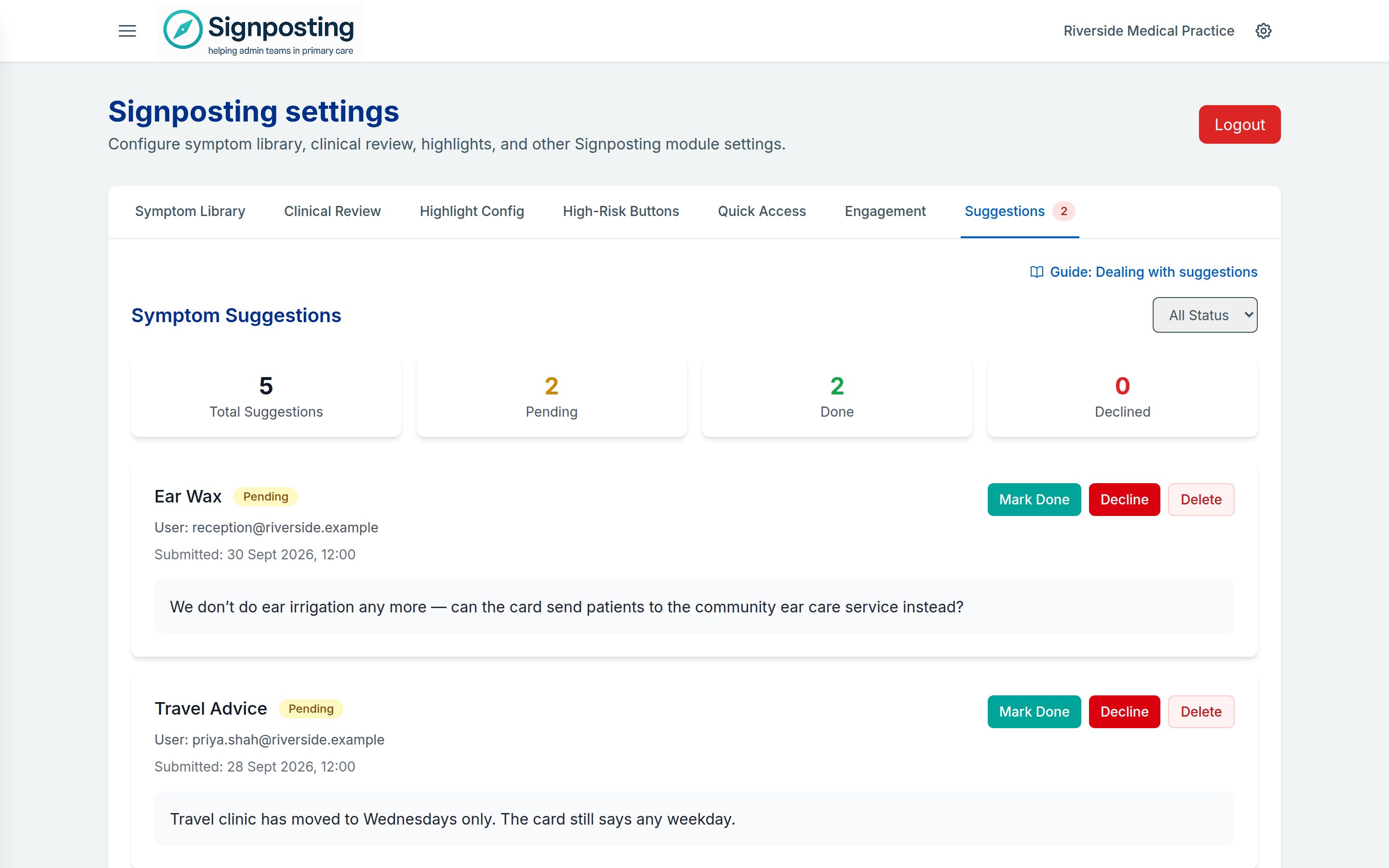
The badge on the Suggestions tab shows how many are pending.
At the top, summary cards show Total Suggestions, Pending, Done and Declined. Use the status filter to show All Status, Pending, Done or Declined.
Each suggestion shows the symptom or subject, its status, the account email of the person who sent it, the date it was submitted, and the suggestion itself. A problem reported with a handbook page is marked Practice Handbook, with Open the page to go straight to it. It’s also listed in the handbook’s Needs attention until it’s dealt with.
Deal with a suggestion
- Read the suggestion and open the card it’s about. If it changes clinical content, check it with your clinical reviewer.
- Make any change on the card. Your edit sends the card back to clinical review; see Cards. A handbook page’s changes go live as soon as you save them; see Practice Handbook.
- Back in the Suggestions tab, choose:
- Mark Done when you’ve dealt with it, for example by updating the card
- Decline when you’ve looked at it and no change is needed
If you change your mind, Undo returns a suggestion to Pending. Delete removes it permanently, without asking you to confirm, so use it only for duplicates or messages sent by mistake. Marking a suggestion done or declined keeps a record; deleting doesn’t.
Letting the sender know
The sender sees the status you set (Pending, Done or Declined) on their My suggestions page. The Suggestions tab doesn’t have a reply box, so if you decline a suggestion or want to explain a change, tell the person directly in your practice’s usual way.
What goes to the Signposting Toolkit team instead
Feature requests, improvements and bug reports about the toolkit software go to the Signposting Toolkit team, not to you. They don’t appear in your Suggestions tab. The team reviews them, sets their status and replies on the sender’s My suggestions page.
If staff send you something that is really about the software, ask them to resend it from the suggestion form with The Signposting Toolkit team chosen as the audience.
The suggestion form doesn’t send anything to your practice’s management or clinical team. Staff are told to contact them directly for questions about practice policies, procedures or clinical processes.
Related: Analytics and engagement to see which cards staff use most, and Clinical governance for how changes are reviewed.