For reception teams
Sending feedback
Suggest a change to a card, send an idea, report a problem or answer a quick feedback question, and follow the replies without leaving the toolkit.
- Everyone
Anyone who signs in to the toolkit can help improve it: reception staff, practice admins and clinicians. You can flag a card that could be better, suggest a new feature or report something that isn’t working. From time to time, the toolkit may also ask you one quick question about how it’s working for you.
Where your message goes
The form first asks Who is your message for?, because different messages go to different people. The rest of the form appears once you’ve chosen. Your practice’s own options are listed first.
| Who is it for? | Use it for | Who receives it |
|---|---|---|
| Your practice’s toolkit administrators | New or changed local guidance, card wording, or services in your practice’s own toolkit | The admins at your practice who look after your toolkit content |
| Your practice’s management or clinical team | Questions about your practice’s own policies, procedures or clinical processes, such as triage or safeguarding arrangements | Nobody: this form can’t reach them. It explains this and asks you to contact your practice manager or clinical lead directly, in your practice’s usual way |
| The Signposting Toolkit team | Ideas, improvements and bug reports about the toolkit software itself, not about your practice | The national Signposting Toolkit development team |
The form doesn’t send anything to your practice’s managers, safeguarding leads or clinicians, so don’t use it for questions meant for them.
Suggest a change to a card
Use this when a card’s wording looks wrong, a local service has changed, or something is missing.
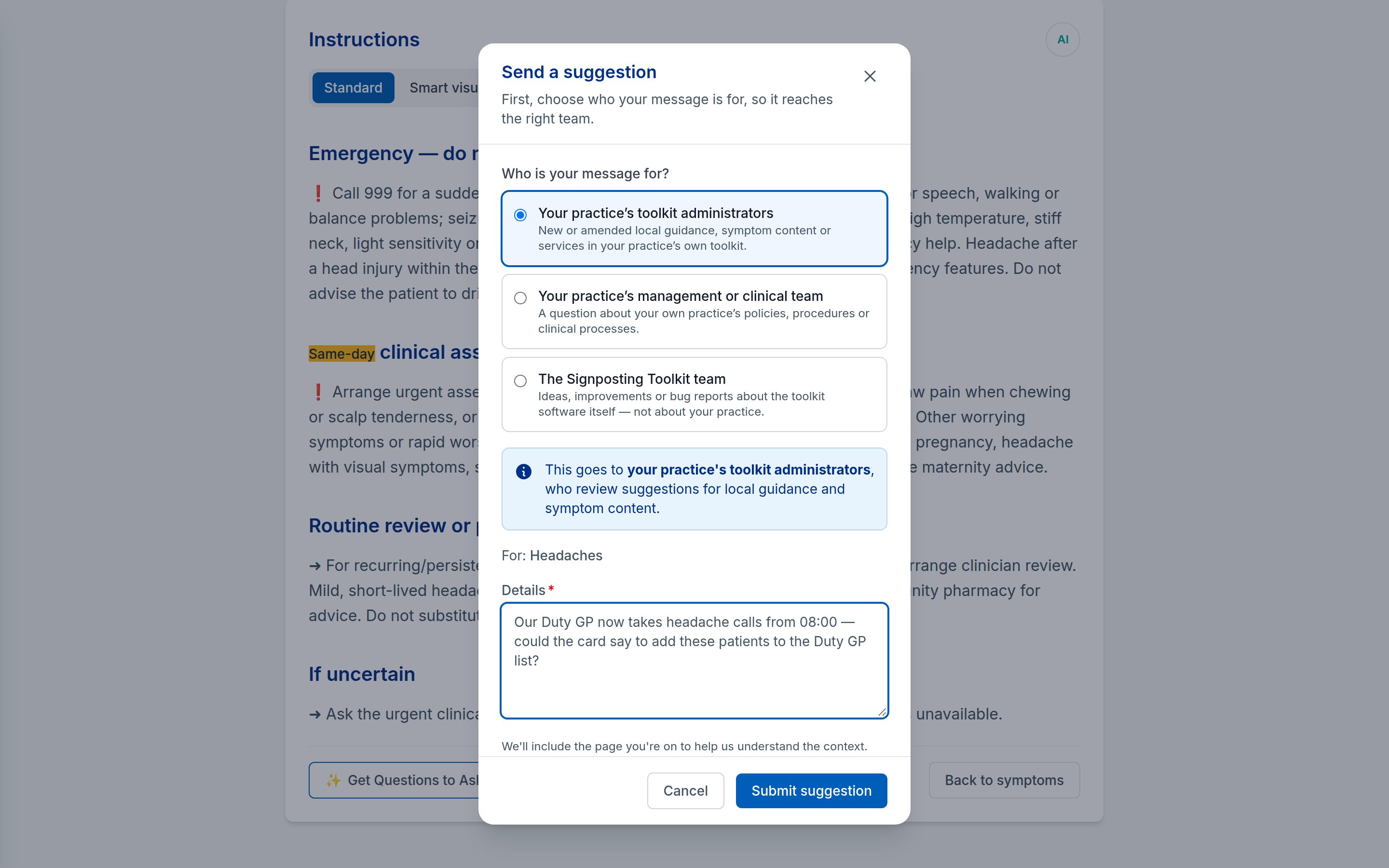
- Open the card and select Suggest an improvement at the bottom of the instructions.
- The form opens with Your practice’s toolkit administrators already chosen, and shows the card’s name next to For:.
- In Details, describe the change you’d suggest and why.
- Select Submit suggestion.
Your practice admins see it in their list of suggestions. If they change the card, your clinical reviewer checks the new wording before it’s approved.
Report a problem with a handbook page
Use this when a Practice Handbook page is wrong or out of date, such as a phone number that has changed.
- Open the page and select Report a problem at the top.
- In What’s the problem?, say what’s wrong.
- Select Send report.
It goes to your practice’s toolkit administrators with a link to the page, and shows on My suggestions marked Practice Handbook. If you can edit the page yourself, you won’t see Report a problem: put it right with Edit instead.
Send an idea or report a problem
- Open the menu (☰) and choose Suggest a feature, near Preferences at the bottom. You can also select Suggest a feature at the bottom of the Help & Documentation panel, or New suggestion on your My suggestions page.
- Under Who is your message for?, choose who it’s for.
- Fill in the rest of the form:
- For your practice’s toolkit administrators: say which card or guidance it’s about in Which symptom or guidance area is this about?, then describe the change in Details.
- For the Signposting Toolkit team: choose the type under What kind of suggestion is this?, add a short Title, then describe it in Details.
- Select Submit suggestion.
For the Signposting Toolkit team, the types are:
| Type | Use it for |
|---|---|
| Feature request | Something new you’d like the toolkit to do |
| Improvement | Making something that already exists work better |
| Bug report | Something that looks broken or behaves unexpectedly |
The form adds the page you were on, so whoever reads it can see what you were looking at. When it’s sent, a message confirms where it went, with a link to My suggestions.
Follow your suggestions
To see what’s happened to your suggestions, open the menu (☰) and choose My suggestions, just below Suggest a feature. Each one shows:
- its type, for example Bug report
- its status: Pending, Under review, Planned, Done or Declined
- the date you sent it, and what you wrote
- any reply, under Response from the Signposting team, with the date it was written
Knowing when you’ve had a reply
When the Signposting Toolkit team replies to one of your suggestions:
- a badge such as 1 new appears next to My suggestions in the menu, showing how many replies you haven’t read
- on the My suggestions page, the suggestion has a New response badge and the reply is highlighted
The badges clear after you’ve visited the page. They come back if the team updates their reply.
If your suggestion is passed to your practice
Sometimes a message sent to the Signposting Toolkit team turns out to be about your practice’s own toolkit, such as a local service that has changed or wording only your practice admins can change. The team can then pass it to your practice’s toolkit administrators rather than declining it.
You’ll see it on My suggestions with its original type, a Passed to your practice’s administrators badge, and a short note from the team explaining why. Your practice admins then review it like any other suggestion, and it keeps its text and history.
Answer a feedback survey
Now and then the toolkit asks one quick question: How useful is the toolkit in your day-to-day work? One click answers it, and anything more is up to you. Your practice takes part once the Signposting Toolkit team switches feedback surveys on, and only after it has been live for four weeks.
When you’re asked
A small card with the question appears in the bottom corner of a home page, such as the symptom list, the Practice Handbook’s main page or the Appointments Directory, when you come back to it after using the toolkit: for example, after opening a card. It never appears as you arrive, over a card, a handbook page or a workflow, or while you’re editing. It doesn’t take you away from what you’re doing, so you can finish a call first, and it waits while anything else, such as a message about a new feature, is open.
You’re only asked once your account is two weeks old and you’ve opened cards, handbook pages or workflows on at least three different days in the last two months. The card appears at most once a day.
Answering
- Select the face that matches your answer. Each has its label: Not at all useful, Slightly useful, Moderately useful, Very useful or Extremely useful. If you haven’t used the toolkit enough to say, select I haven’t used it enough yet instead.
- Your answer is saved straight away. The card says Thanks—your rating has been saved. once it is. If it couldn’t be saved, or the card couldn’t tell because the connection dropped, it says so, so you can try again. Trying again never counts your answer twice.
- If you like, write what influenced your rating and select Send comment. Don’t include patient details. Otherwise, select Done. Your rating counts either way.
Selected the wrong face? Select another before you close the card. It changes your answer rather than adding a second one.
If you’d rather not answer:
- Not now puts the card away for a week.
- Don’t ask again stops the card asking.
The card stops after a few days whether or not you answer it. To answer when it suits you, open the menu (☰) and choose Share feedback on the toolkit. It stays in the menu until you’ve answered, even if you chose Don’t ask again.
If you were asked the earlier four-question survey
This question is asked afresh. Whatever you told the earlier survey, whether you answered it or chose No thanks or Not now, the card can still ask you this question. Your answers to the earlier survey are kept as they were. You can answer this question from the menu at any time, and Don’t ask again on its card stops it asking.
Who sees your answers
Your answer is saved for the practice you’re working in when you answer (the card names it), without your name.
- The Signposting Toolkit team sees each answer and comment, with your practice and your role there.
- Your practice admins see only a summary of the practice’s ratings, once at least five staff have given one. They never see comments, or who answered or was asked.
Your answer isn’t anonymous: in a small team, your practice, your role or what you write could show who you are. If you tick I’m happy to be contacted about my comment, your name is kept with your answer so the team can get back to you, and only the Signposting Toolkit team sees it.
A survey isn’t the way to report a problem with a card or to get urgent help. Use Suggest a change to a card, or your practice’s usual route. Ratings never change cards or their approval.
Who reviews what
- Card and local guidance suggestions, and problems reported with handbook pages, go to your practice admins, who review them in Signposting settings. See Suggestions.
- Feature requests, improvements and bug reports go to the Signposting Toolkit team, who review them centrally, set their status and reply to you.
- Feedback survey answers go to the Signposting Toolkit team, and your practice admins see a summary of your practice’s ratings. They don’t get individual replies.
Related: Reading a card · When you’re unsure