Running your toolkit
Appointments directory
Add and update your practice's appointment types, staff teams, notes and colours, one at a time or from a CSV file.
- Practice admins
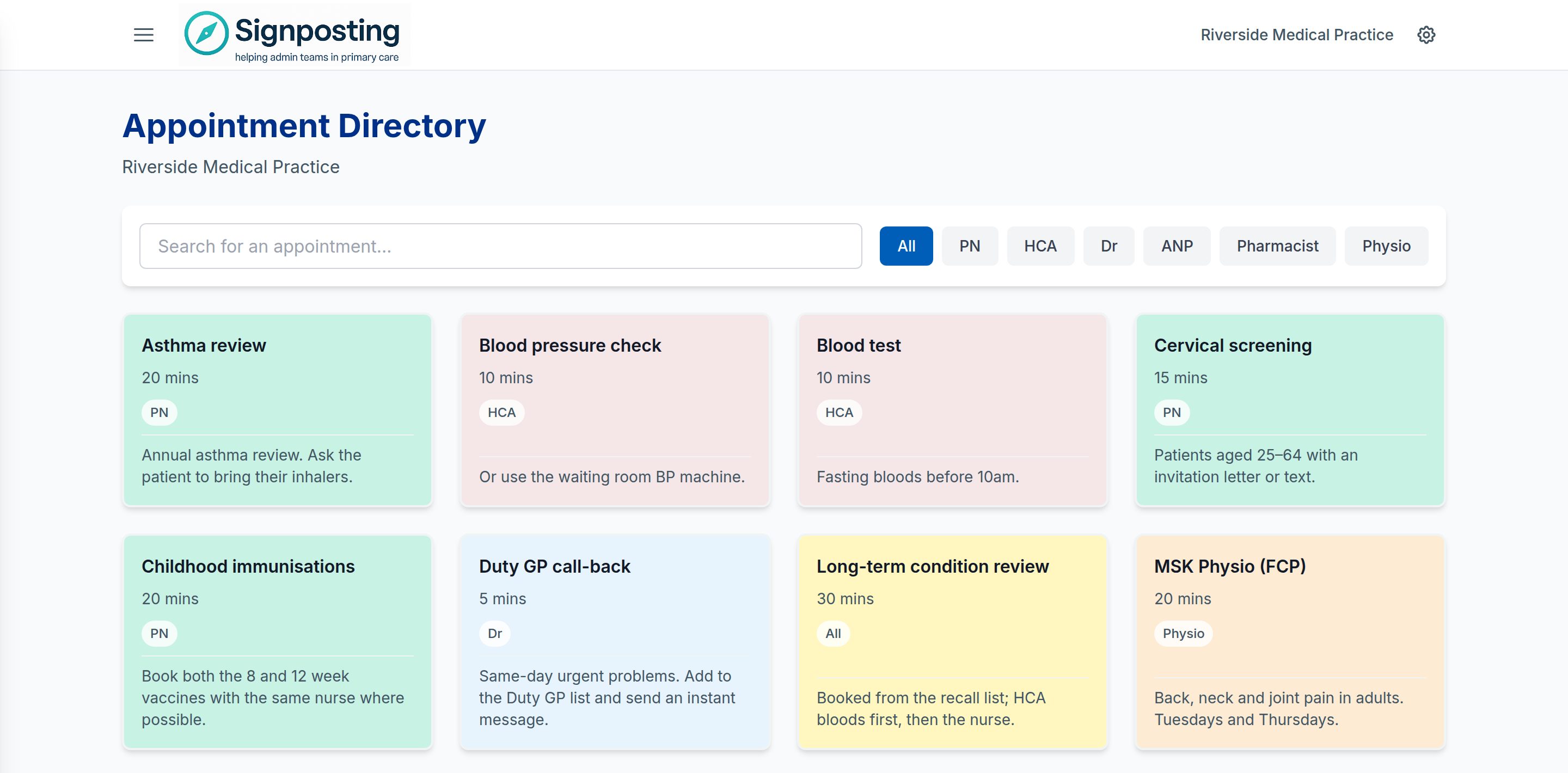
The appointments directory is your practice’s list of appointment types: who runs each one, how long it takes and any booking rules. Staff look things up in it when a card tells them which appointment to book, so use the same appointment names in both places. How staff use it is covered in Handbook, appointments and workflows.
☰ MenuAppointments DirectoryAs a practice admin you’ll see Upload CSV, Add New Entry and Manage Staff Teams at the top of the page. Staff don’t see these.
Add or edit an appointment
- Select Add New Entry. To change an existing appointment, select the edit button on its card instead.
- Enter the Appointment name.
- Choose the Staff team.
- Enter the Duration (minutes).
- Choose a Colour if you want one different from the team’s (see Colours).
- Add any Notes for reception staff (see Notes and images).
- Select Create (or Update when editing).
To remove an appointment, select the delete button on its card and confirm with Delete.
Staff teams
Staff teams group appointments by who delivers them, and give each group a colour. Staff can filter the directory by team.
Select Manage Staff Teams to:
- add a team — enter a name (for example “Paramedic”) and optionally a default colour.
- recolour a team your practice has added.
- delete a team your practice has added. Its appointments move to All.
The built-in teams are available to every practice and can’t be changed or removed:
- All
- PN (Practice Nurse)
- HCA (Healthcare Assistant)
- Dr (Doctor)
Notes and images
Notes use the same editor as card instructions and the Practice Handbook. You can:
- format notes with headings, bold, lists, links and highlights.
- add a JPG or PNG image of up to 2MB with Insert image in the toolbar, with alt text for screen readers. A room map or equipment photo can save a lot of explaining.
- resize an image: select it and use Image size to choose Small, Medium, Large or Original size.
Images are private to your practice and shown only to its signed-in staff. Notes, including images, appear on the appointment’s card. Cards are narrow, so anyone can select an image to open it full screen and zoom in.
Colours
By default an appointment takes its staff team’s colour. To choose another, pick a shade in the editor, or enter a hex code (such as #00A499) under Custom colour (hex code or Tailwind token). Select Use default colour to go back to the team’s colour.
The built-in teams keep their standard colours. Each team your practice adds has its own colour, which you can change in Manage Staff Teams.
Import from a CSV file
A CSV file is the quickest way to set up the directory, or to update many appointments after a reorganisation.
- Prepare a CSV file with one row per appointment type and these column headings: Appointment Name, Duration, Personnel, AppointmentType and Notes.
- Select Upload CSV and choose the file.
- Select Upload.
A message tells you how many appointments were created and updated, and how many rows were skipped and why.
How the file is read:
- Appointment Name is the only column you must include. Rows without a name, and repeated names, are skipped.
- Duration is in minutes. “15”, “15 mins” and “15 minutes” all work.
- The staff team comes from Personnel, or from AppointmentType if Personnel is empty. If both are empty, the appointment goes under All.
- If an appointment with the same name already exists, it is updated. Otherwise a new one is created. Appointments that aren’t in the file are left as they are.
If you’ve added rich notes or images in the app, leave those appointments out of the file, or add the formatting again after importing.
Keep it useful
- Use clear, consistent names, and the same names that your cards use.
- Check the directory when services change, and ask staff to tell you when something is missing. They can use Suggest an improvement on a card. See Sending feedback.
Related: Cards · Handbook, appointments and workflows