For clinical reviewers
Working through the queue
How to find the cards waiting for you, approve them, request changes and use bulk approval and re-review safely.
- Clinical reviewers
- Practice admins
Open Clinical Review from ☰ MenuSignposting settingsClinical Review. It opens on the Pending list: the cards waiting for review.
Above the list, Start reviewing opens the first card in it, so you can read each card in full before you decide. On the card, Approve and next takes you straight to the next one, in the same order as the list. In Changes requested, the button is Start making changes: each card opens in its editor, with the reviewer’s note beside it, and Save and next moves on. See Previous and Next.
Review statuses
Each card has one of three statuses at your practice:
| Status | What it means | What to do |
|---|---|---|
| Pending | The current wording is waiting for review. New cards, edited cards and AI drafts start here. | Check it, edit if needed, then approve the final version. |
| Changes requested | A reviewer has found something that needs fixing. | Read the reviewer’s note, arrange the fix, then have the final wording checked and approved. |
| Approved | A reviewer has approved this version for your practice. | Revisit it when the wording or your local arrangements change. |
The list on the left has four views, each with a count: Pending, Changes requested, Approved and All (including disabled). When some cards are switched off, the last view also shows how many are in use and how many are disabled.
Each row shows:
- the card name, its age badge and a Disabled tag if it is switched off
- its status. An AI draft has an AI draft tag, and anything AI asked you to check is listed under To check. A card with a reviewer’s note has a Note tag and the note. If someone has edited the card since changes were requested, the row says who and repeats the request, for example “Edited by Kim Evans after changes were requested. The request was: …”. A card edited since its last review without a note says so too, for example “Edited by Kim Evans since Dr Jo Reid last reviewed it.”
- Last changed: the date of the last review decision and who made it, or Not reviewed if there isn’t one (including cards sent back to Pending by an edit)
- Approve, Request changes and Preview. A card with changes requested leads with Make changes instead (see Resolving requested changes)
Select a card’s name, or anywhere else on its row, to open the card. Ctrl-click (Cmd-click on a Mac) opens it in a new tab.
Narrowing the list
Use these to focus on part of the work. They change what you see; they don’t resolve anything.
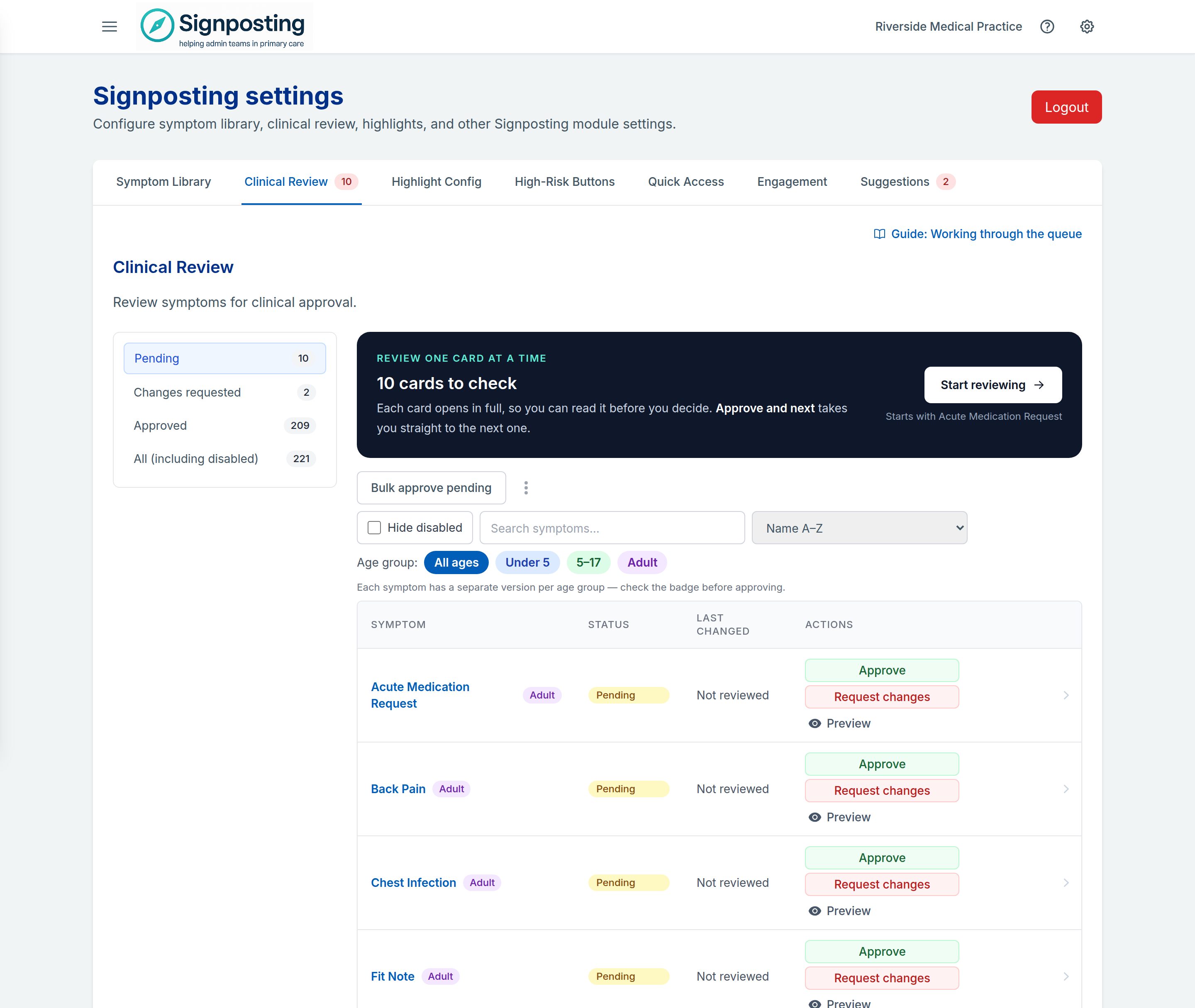
- Search symptoms… matches card names.
- Hide disabled hides cards that are switched off, so you can focus on cards staff are using.
- Age group: All ages, Under 5, 5–17 or Adult. Practices that use one card for all ages don’t see this filter.
- The sort menu:
| Sort | Use it to |
|---|---|
| Name A–Z / Name Z–A | Work alphabetically (the default is A–Z). |
| High-risk symptoms first | Start with cards linked to your high-risk buttons. |
| Clinician-type symptoms first | Bring forward cards whose brief instruction mentions an ANP, first contact physiotherapist, pharmacist, physiotherapist or minor illness clinician, to check their scope. |
| Most recently changed | See the latest review decisions first. Cards with no review decision, such as those sent back by an edit, go to the end. |
| Status | Group cards by status. |
Checking a card
You can check a card in two ways.
Preview opens a read-only preview beside the list. It shows:
- the age badge and which age group this version covers
- Visible to reception: Yes or No, and whether the card is the shared wording, Modified locally or Local only
- when it was last changed and by whom, who last reviewed it, and any reviewer note
- the Important message, Brief instruction, Full instruction and any age-group variants
- Local wording and Base wording to compare a locally changed card with the shared one
- Reviews preserved before AI customisation, if AI has rewritten the card (see AI drafts)
Links are switched off in the preview, and it doesn’t show highlights or smart visuals.
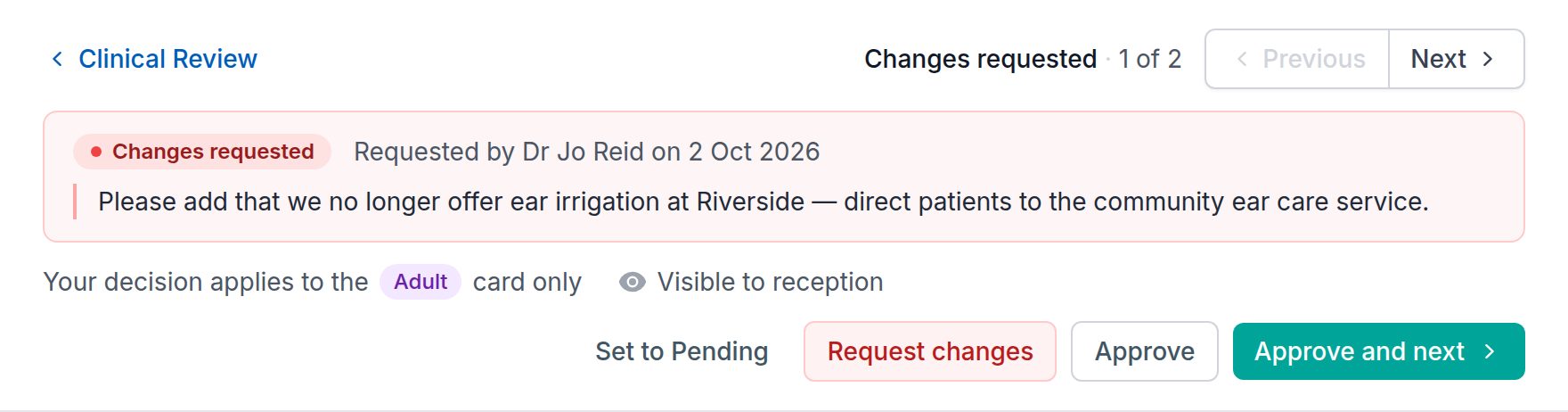
The card name, or anywhere else on its row, opens the full page, as staff see it, with a review panel at the top. It shows:
- where the card sits in the list you came from, for example Changes requested · 3 of 12, with Previous and Next, and Clinical Review to go back
- the last review: who made it, when, and any note
- which age group your decision covers, and whether reception can see the card
- the buttons Request changes, Approve and Approve and next, plus Set to Pending on a card that isn’t pending
You can edit the card from here too.
Use the checklist in What to check on every card.
Approving a card
- In the list, select Approve. The button changes to ✓ Approved.
- On the full page, select Approve, or Approve and next to move on to the next card.
Approving records your name and the date, and clears any reviewer note on the card.
If the card is switched off, approving from the list asks whether to switch it on as well: choose Approve only or Approve and re-enable. Approving from the full page doesn’t switch a card on.
Editing during review
If you edit a card, saving your change sends it back to Pending. This is deliberate: the version that gets approved is the final one. Once you have saved, approve the card again.
Any change your practice saves to a card, such as its instructions, brief instruction, important notice, related links or age-group variants, sends it back to Pending. Switching a card on or off doesn’t.
Requesting changes or disabling a card
Select Request changes. A dialog titled Changes requested opens.
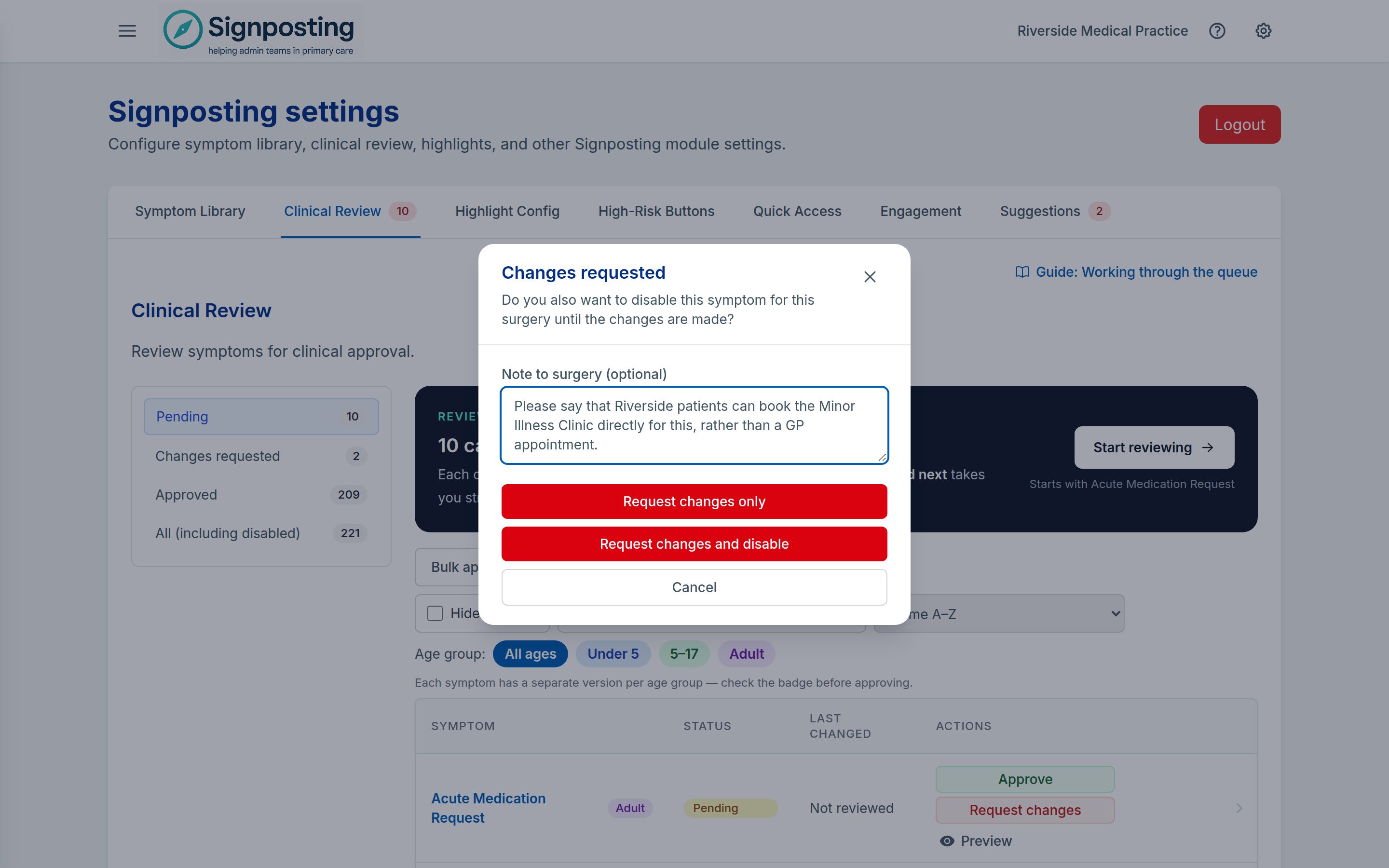
- Write a specific note in Note to surgery (optional), for example “Remove the A&E advice; we don’t offer that locally.” Notes can be up to 1,000 characters. A count appears as you get close, and a longer note can’t be sent until it’s shortened.
- Choose one:
- Request changes only: the card stays in use while it’s fixed.
- Request changes and disable: the card is also switched off, so staff no longer see it.
- Cancel (or Esc): nothing changes.
If the request doesn’t save, the dialog stays open with your note and says why, so you can try again.
Check that the card was disabled. When it works, a message says Disabled for this surgery, the row shows a Disabled tag, and the preview shows Visible to reception: No. If you don’t see these, the status may have changed without the card being switched off. Try again or ask your practice admin to switch it off.
Disabling isn’t approval. A disabled card keeps its review status, and it still counts towards completing review during setup.
Your note is visible to staff. It appears in the list and on the card’s banner for anyone who opens it. Write it for colleagues to read, and don’t include patient details.
Resolving requested changes
Making the changes doesn’t need a clinician: any practice admin can do it.
- Open Changes requested and select Make changes on the card. The card opens in its editor, with the reviewer’s note beside the instructions.
- Make the change and save it. Save and next opens the next card with changes requested, in its editor too.
- Saving sends the card to Pending. Until it is approved, the list shows who edited it and what the reviewer asked for.
- Your clinical reviewer checks the final wording and approves it.
If the card was disabled, choose Re-enable for this surgery in the preview, or Approve and re-enable when you approve it from the list.
Dividing the work between reviewers
If two clinicians share the review:
- Assign separate alphabetical ranges (for example A–L and M–Z) or separate age groups, and note where each of you stops.
- Use search or the age filter to stay within your share.
- Sorting one list A–Z and another Z–A doesn’t reserve cards or stop you both reviewing the same card.
The last decision on a card is the one that counts, and it shows the name of whoever made it.
Previous and Next
Open a card with Start reviewing or from its row, or choose Edit and review this card in the preview (Make changes for a card with changes requested). The reviewer’s note appears above the card and beside the instructions while you edit.
Previous and Next follow the list as you left it: the same status view, search, age group and Hide disabled setting, in the order you sorted it. The review panel shows where you are, for example Pending · 3 of 10, and Clinical Review at its top returns to that practice and the same view.
Choose Save Changes to stay on the card, or Save and next to save your edits and open the next card in that status view. Saving puts the edited card in Pending and keeps the reviewer’s note, and a message says Saved. It’s back in Pending for a clinician to check. A failed save keeps you on the current card with your edits.
Save or cancel your edits before recording a decision. Then choose Approve to stay on the card, or Approve and next to approve it and move on. On the last card in the list, the button is Approve and back to list. Approval remains a separate, explicit decision.
Bulk approval
Bulk approve pending approves many cards at once. Before it does anything, a confirmation tells you how many cards it will approve and that the approvals will be recorded in your name. Choose the approve button, such as Approve 12 cards, or Cancel.
It approves every Pending card that matches your search and age filter, whichever status view you are on, except:
- AI drafts, and cards edited since they were last reviewed, such as a fix to a card sent back for changes. Open these and approve them one at a time. The confirmation says how many were left out, and if they’re all that’s waiting, the button is unavailable.
- Cards with changes requested are not approved.
- Disabled Pending cards are included unless Hide disabled is ticked.
- Each card is recorded as approved by you, on that date.
Request re-review
Request re-review… is in the More review actions menu (⋮) beside Bulk approve pending. It sets every approved card and every card with changes requested at your practice back to Pending. The confirmation, Request re-review of every card?, says how many approvals and notes it will clear. Choose Set every card to Pending or Cancel.
Who approved what, and when
For each card, Clinical Review keeps the latest decision: its status, who made it and when, and any note. You can see it:
- in the Last changed column of the list
- as “Last reviewed by [name] on [date]” in the preview
- as “Approved on [date] by [name]” at the top of the card for everyone at your practice
Earlier wording stays in the card’s history. When AI customisation rewrites a card, the earlier decisions and notes are also kept, under Reviews preserved before AI customisation.
If your governance process needs a record of each review session, note it in your practice’s governance records as well.
When is review complete during setup?
The setup stage is complete when there is at least one approved card, no Pending cards and no cards with changes requested. Disabled cards count too. When nothing is pending but cards still have changes requested, the Pending view says Nothing waiting for review and offers a button to open them. When review is done, return to your setup page to check the overall counts. See Review your cards.