For reception teams
Smart visuals and suggested questions
The optional AI tools you may see on a card, what they're for and how far to rely on them.
- Reception teams
Your practice can choose to use two AI tools on symptom cards. They’re optional, so you may see one, both or neither. They help you read a card faster and ask the caller the right things, but the card’s written instructions come first.
Smart visuals
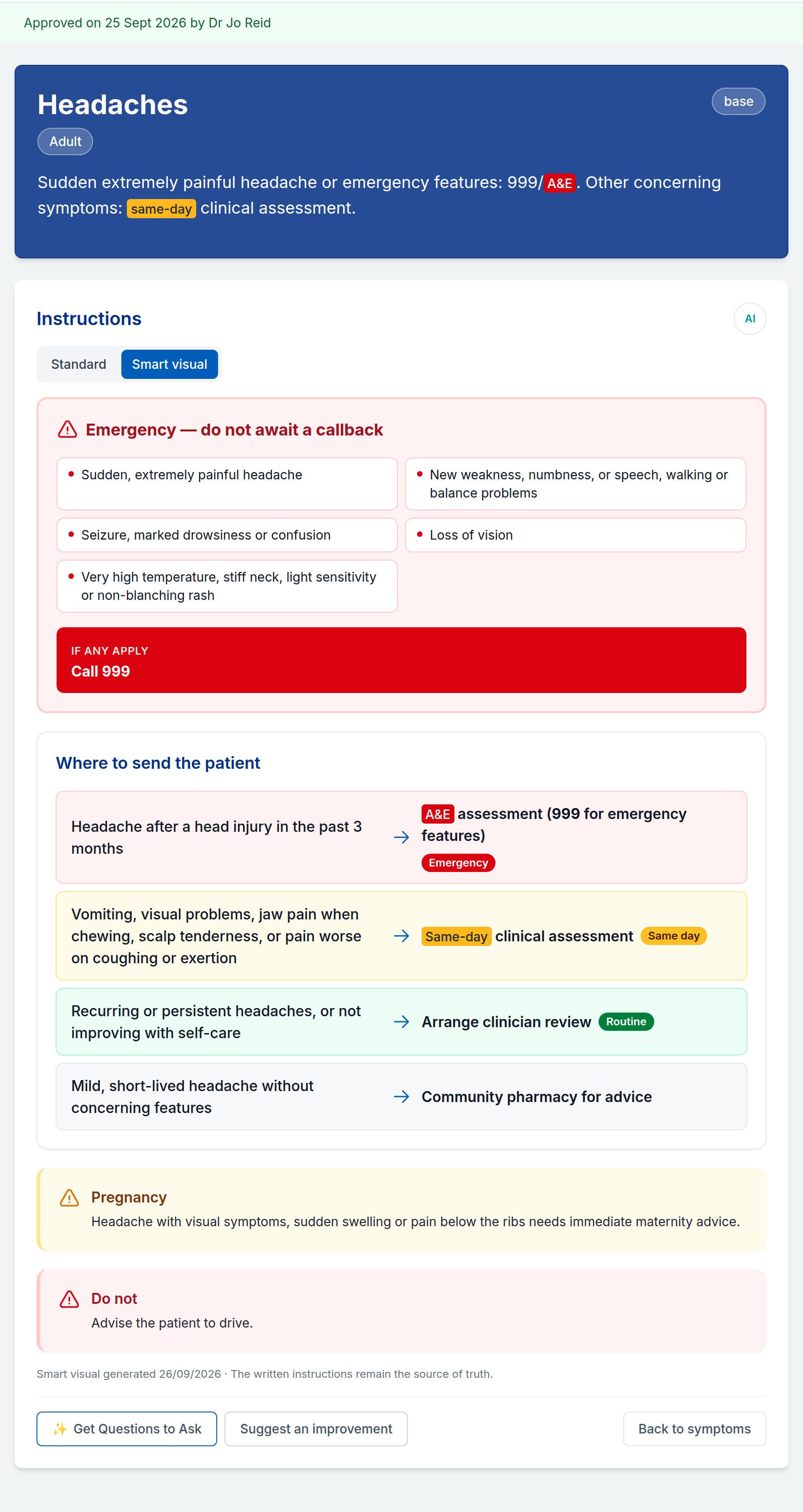
A smart visual is a quick-to-scan version of a card’s instructions, laid out for reading mid-call. AI reorganises the written instructions into it, and your practice’s clinical reviewer checks it before staff can see it.
How to tell if a card has one
When a card has a smart visual you can see, the instructions start with two tabs: Standard and Smart visual. The card opens on the smart visual. Select Standard for the written instructions, and Smart visual to go back.
If there are no tabs, the card has no smart visual for you to see, and you read the written instructions as normal.
What’s in a smart visual
- Red flags in their own block, with the single action to take if any of them apply.
- Routing rows: the card’s “if this, book that” decisions, one per row. Each has a coloured chip showing how soon the patient needs care: Emergency, Same day, Urgent or Routine, taken from the card’s own wording.
- The card’s Important Notice, shown first.
- Key facts, checklists, steps and short lists for the supporting detail.
Phone numbers such as 999 and 111, and local numbers, stand out, and on a phone you can tap them to call. Your practice’s highlight colours work in the smart visual too, so a phrase coloured in the written instructions is coloured the same way here.
When you won’t see one
- It hasn’t been approved yet. A smart visual is only shown to staff once the card has passed clinical review. Until then you see the written instructions.
- The instructions have changed. If someone edits the written instructions, the smart visual is hidden until a practice admin makes a new one and it’s approved again. This stops an out-of-date visual being shown.
- You’ve chosen different age-group advice. Each group’s advice has its own smart visual. If the group you’ve selected doesn’t have one, you see its written advice.
Suggested questions
If they’re switched on for you, Get Questions to Ask appears at the bottom of a card’s instructions. It suggests questions to help you gather what you need to follow that card.
Get suggested questions
- Open the card and select Get Questions to Ask.
- Wait a few seconds while it shows Generating questions….
- A panel headed Suggested wording for questions to ask opens below the instructions. The questions are grouped by purpose, for example Check for emergencies / red flags, Assess urgency / timing and Determine appropriate care pathway. A group is left out when the card doesn’t cover it.
- To copy them, for example into your notes, select Copy all questions. Select × to close the panel.
If your practice uses one card for all ages, the first question establishes the patient’s age.
How far to rely on them
- The card comes first. If a question and the card disagree, follow the card, and let your practice admin know.
- Nothing is saved. The questions disappear when you leave the card, and asking again may word them differently.
- Only you see them. They’re not added to the card or shown to colleagues.
- They’re based only on the card. The AI doesn’t see anything about the patient or your call.
If you can’t see the button
Suggested questions are switched on for each practice by the Signposting Toolkit team, and your practice admin can switch them off for individual staff. If a colleague has the button and you don’t, ask your practice admin.
The AI button next to Instructions
If your practice has switched on AI wording suggestions for you, a small round AI button appears beside the Instructions heading. It asks AI to suggest clearer wording for the card and shows it side by side with the current version. Only practice admins can apply a suggestion, and any change goes through clinical review before it counts as approved. If you think a card’s wording could be clearer, you can also use Suggest an improvement.
Related: Reading a card · Using AI safely